新批次设备通过 StoryClaw App 的蓝牙功能为设备推送 WiFi 信息,完成配网约需 1~2 分钟。
For newer-batch devices, push WiFi credentials via the StoryClaw App's Bluetooth feature. Setup takes about 1–2 minutes.
配网 WiFi 要求
- 推荐:家庭宽带、办公室直连 WiFi(输入密码即可上网)
- 注意:酒店、机场、商场等需要打开浏览器页面进行登录认证的网络,须为设备额外接入显示器、鼠标和键盘后,才能完成认证操作
WiFi Requirements
- Recommended: Home broadband, office direct WiFi (password only)
- Note: For hotel, airport, or mall networks requiring a browser login page, connect a monitor, mouse, and keyboard to the device first to complete authentication
绑定邮箱请谨慎变更
- 首绑赠分:首次绑定的邮箱将获赠 2000 积分(Token),解绑后更换新邮箱,新邮箱不再享有此赠送
- 积分不可转移:已充值到原邮箱的积分无法转移至新邮箱,切换有一定损失风险
- 多人共用:如需分享给他人,可在设备设置中添加共享邮箱(最多 5 个),无需解绑原账号
Think twice before changing your bound email
- First-bind bonus: The first bound email receives 2,000 bonus credits (Token). Unbinding and switching to a new email forfeits this bonus
- Credits are non-transferable: Credits already topped up to the original email cannot be moved to a new one
- Sharing: To let others use the device, add shared emails in device settings (up to 5) — no need to unbind your account
配网后无需随身携带设备——将 StoryClaw 放在家中稳定的 WiFi 环境中即可,无论您身在何处,都可以通过手机 App 或电脑控制台远程访问使用,无需带着盒子出差或旅行。
No need to carry the device with you — place StoryClaw in a stable home WiFi environment once, then access and use it from anywhere via the App or console. No need to travel with the device.
开始前确认:已安装 StoryClaw App、手机蓝牙已开启、设备已通电并正常运行。
Before you start: StoryClaw App is installed, phone Bluetooth is on, and the device is powered on and running.
下载安装 StoryClaw App Download & Install StoryClaw App
访问 storyclaw.com,点击页面顶部「产品下载」,用手机扫描二维码(自动识别 iOS / Android 系统),或点击 iOS / Android 按钮直接下载。
Visit storyclaw.com, tap "Product Download" at the top, then scan the QR code (auto-detects iOS / Android) or tap the iOS / Android button to download directly.
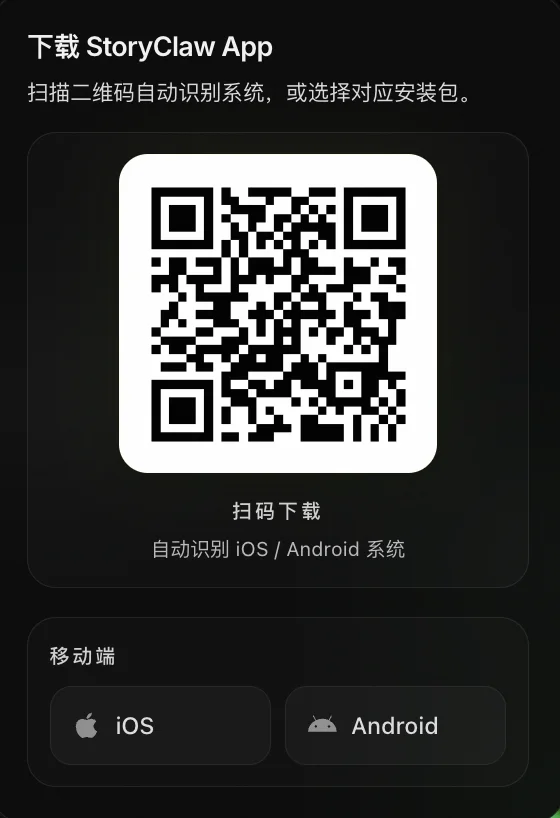
- 扫码或点击「Android」按钮,下载 APK 安装包Scan the QR code or tap "Android" to download the APK installer
- 下载完成后点击文件,允许「安装未知来源应用」后完成安装Tap the downloaded file and allow "Install unknown apps" when prompted to complete installation
- 同样下载 APK 文件,但纯血鸿蒙(HarmonyOS 5.0+)不支持直接安装 APKDownload the same APK file, but HarmonyOS 5.0+ cannot install APKs directly
- 需先在华为应用市场搜索并安装 「卓易通」(安卓兼容运行工具)First install "Zhuo Yi Tong" from Huawei AppGallery (an Android compatibility tool)
- 卓易通安装完成后,用卓易通打开下载好的 APK 文件即可完成安装Once installed, open the downloaded APK file with Zhuo Yi Tong to complete installation
- HarmonyOS 4.2 及以下旧版本:关闭纯净模式(设置 → 系统和更新 → 纯净模式 → 关闭),然后直接安装 APKHarmonyOS 4.2 and below: disable Pure Mode (Settings → System & Updates → Pure Mode → Off), then install the APK directly
- StoryClaw App 尚未上架 App Store,需通过 TestFlight 安装 Beta 版本,共三步:StoryClaw App is not yet on the App Store — install the Beta via TestFlight in three steps:
- 第 1 步:在 App Store 搜索并安装 TestFlight(苹果官方测试平台,免费) Step 1: Search for and install TestFlight from the App Store (Apple's official beta platform, free)
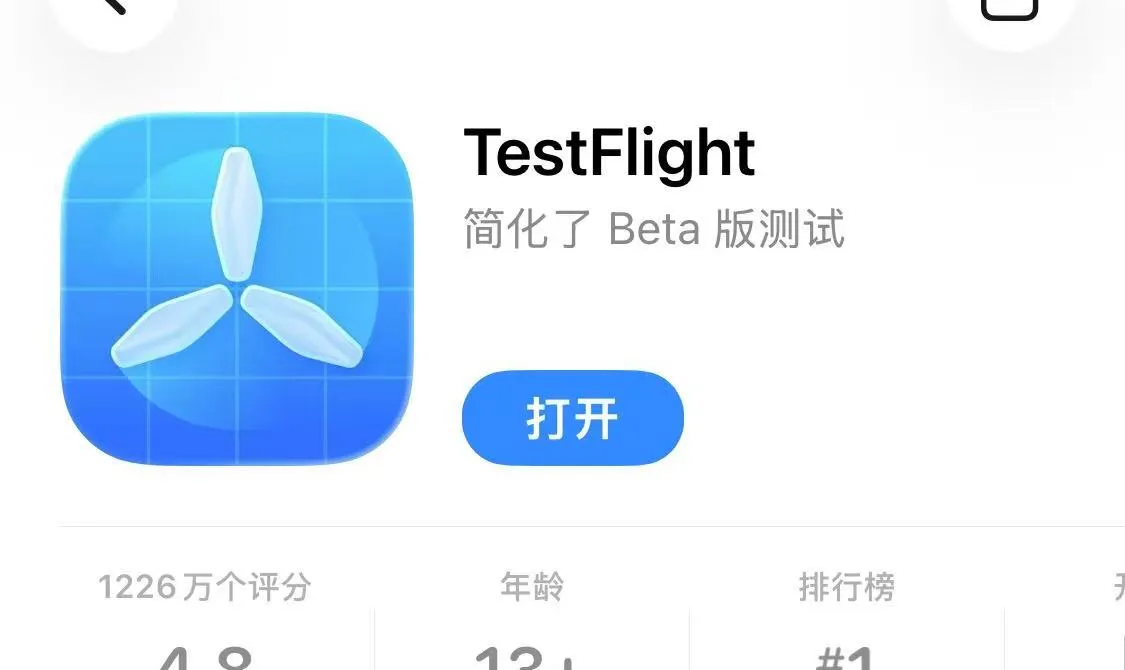
- 第 2 步:安装完成后,用微信或相机扫描下载页二维码,弹出「在 TestFlight 中打开?」提示,点击「打开」 Step 2: After installing TestFlight, scan the QR code on the download page with WeChat or Camera — tap "Open" when prompted to open in TestFlight
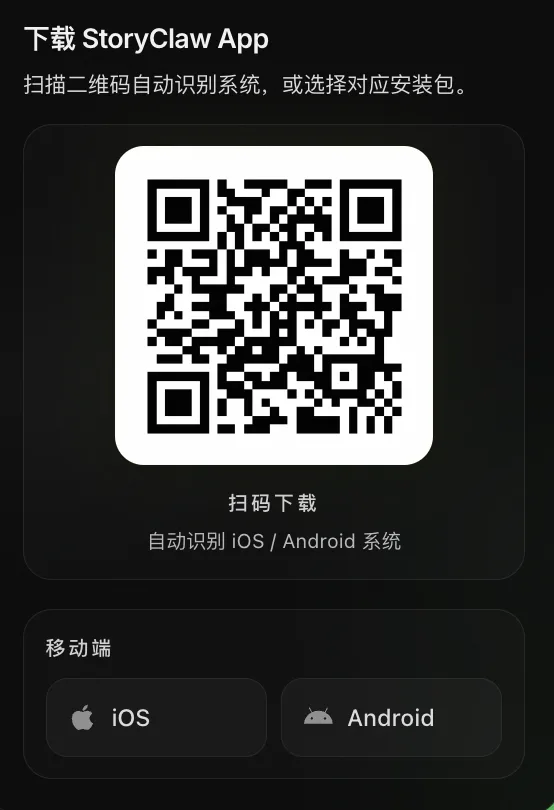
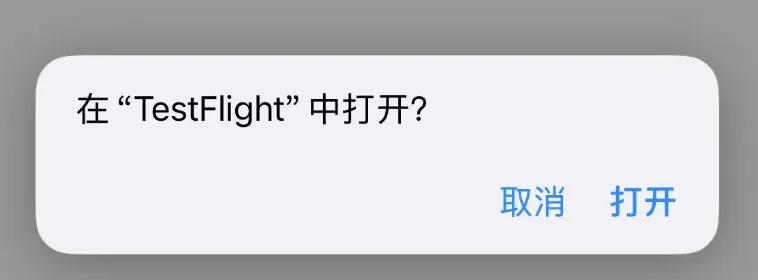
- 第 3 步:跳转至 TestFlight 后,点击「安装」完成 StoryClaw Beta 安装 Step 3: In TestFlight, tap "Install" to complete StoryClaw Beta installation
打开 StoryClaw App Open StoryClaw App
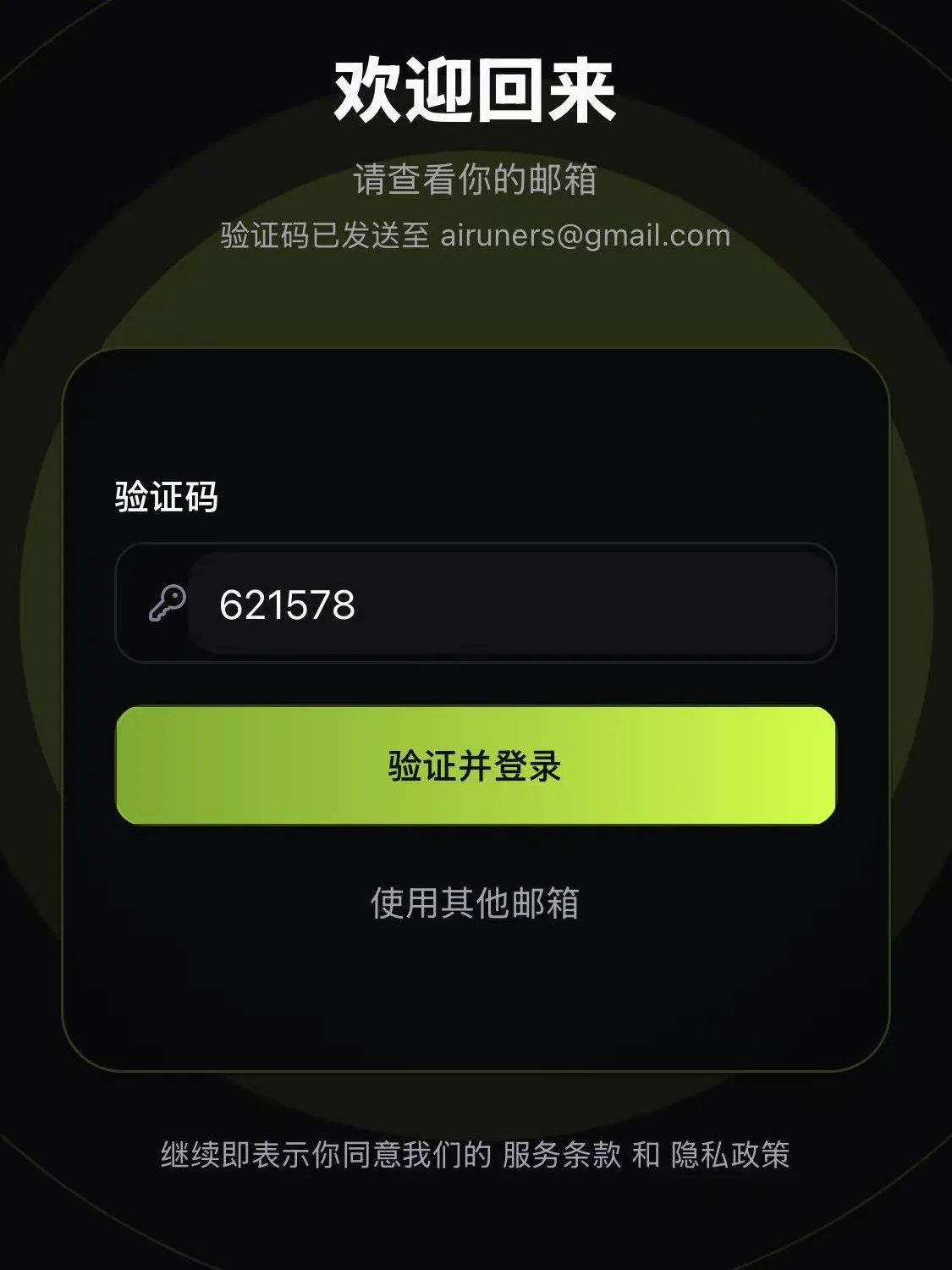
在手机上启动 StoryClaw App。首次使用需要登录账号:输入邮箱地址,点击「使用邮箱继续」,收到验证码后填入,点击「验证并登录」完成注册/登录(登录即注册,无需提前创建账号)。
Launch the StoryClaw App. First-time users need to sign in: enter your email, tap "Continue with Email", enter the verification code you receive, then tap "Verify and Login" (signing in automatically creates an account).

点击「蓝牙添加设备」入口 Tap "Add Device via Bluetooth"
对话页底部若提示「未连上网关」,点击黄绿色按钮 「+ 蓝牙添加设备」,进入蓝牙配网页。
If the chat page shows "gateway not connected", tap the "+ Add Device via Bluetooth" button to enter the Bluetooth setup page.

扫描附近设备 Scan for nearby devices
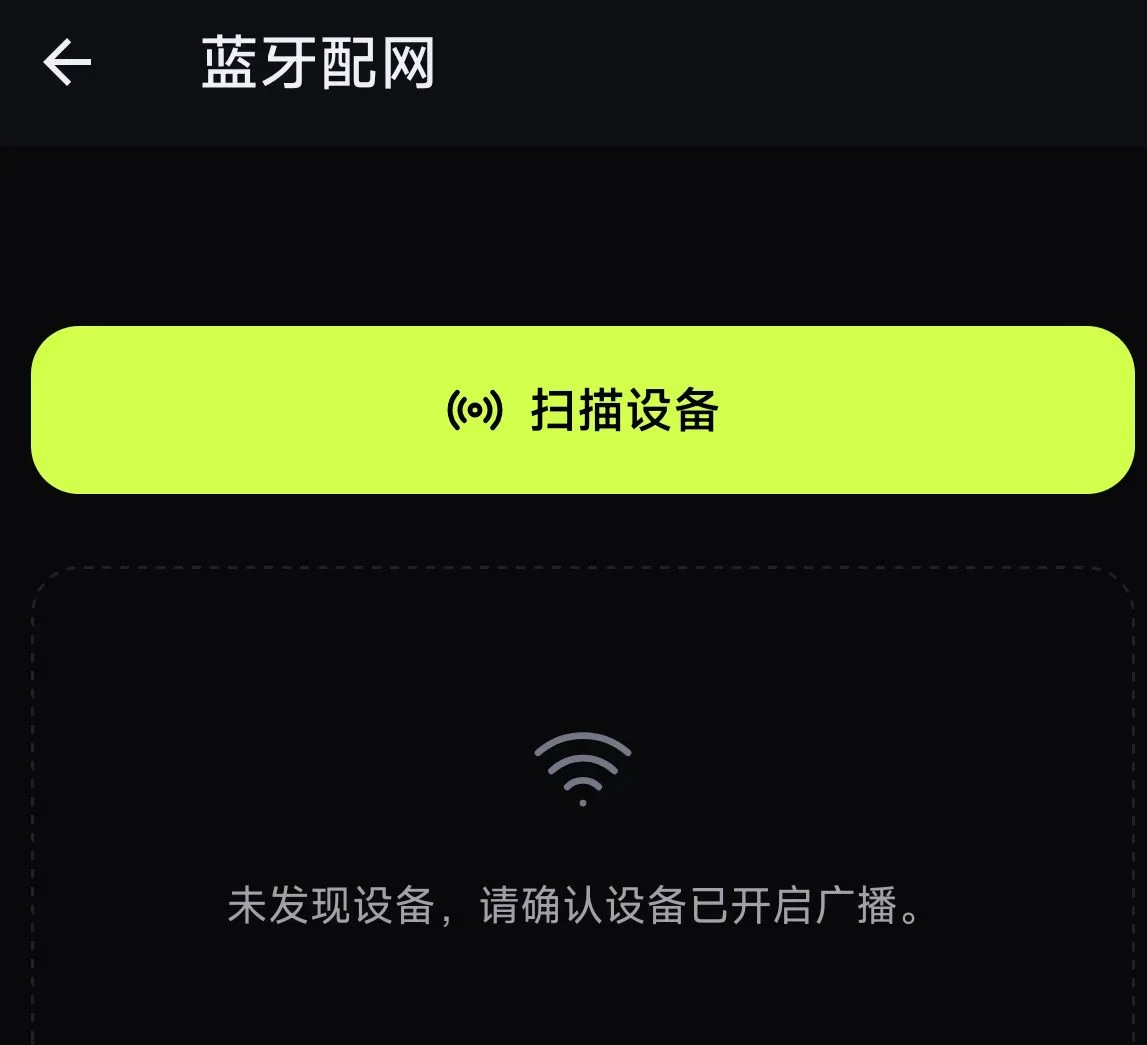
点击 「扫描设备」,App 将通过蓝牙搜索附近的 StoryClaw 设备。扫描过程通常在 10~20 秒内发现设备。
Tap "Scan for Devices". The App searches for nearby StoryClaw devices via Bluetooth. Discovery usually takes 10–20 seconds.
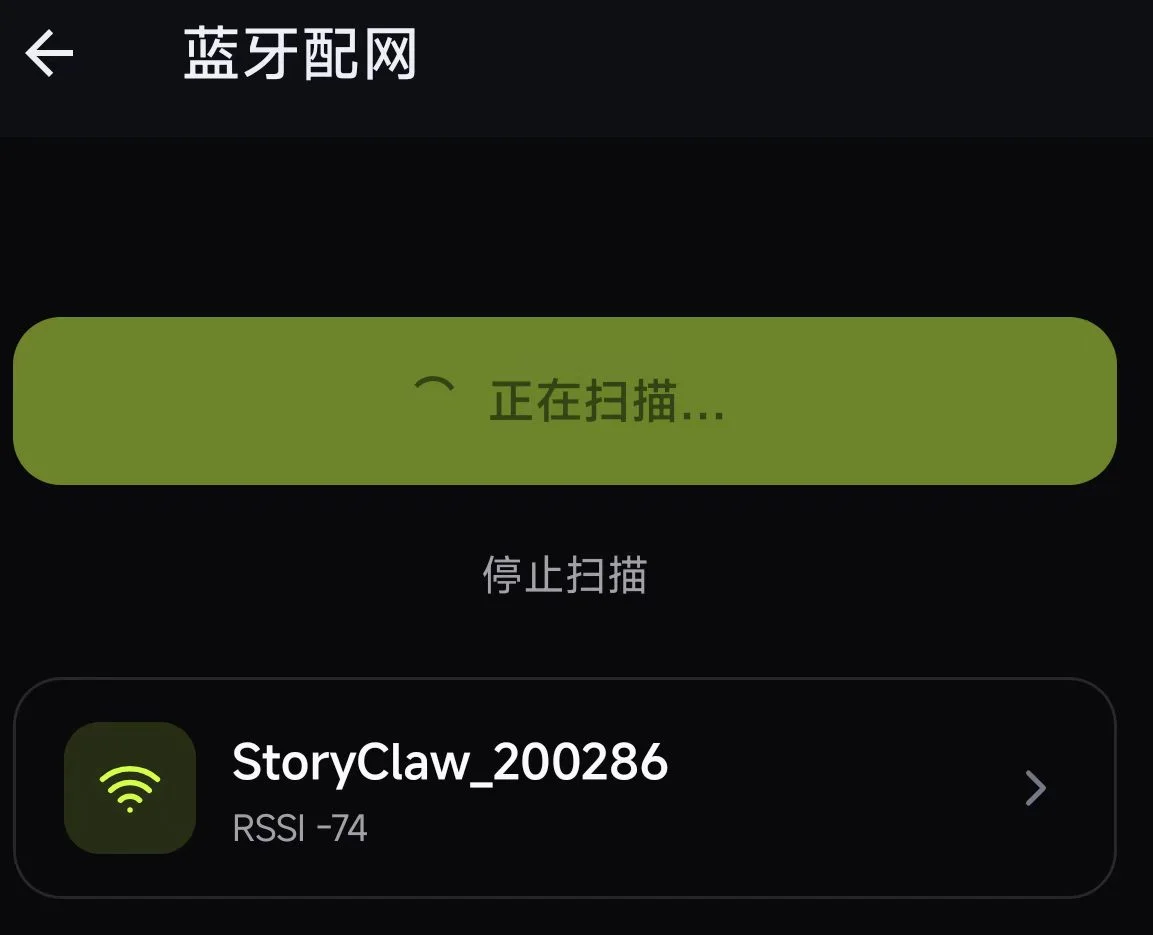
选择设备并输入 WiFi 信息 Select device and enter WiFi credentials
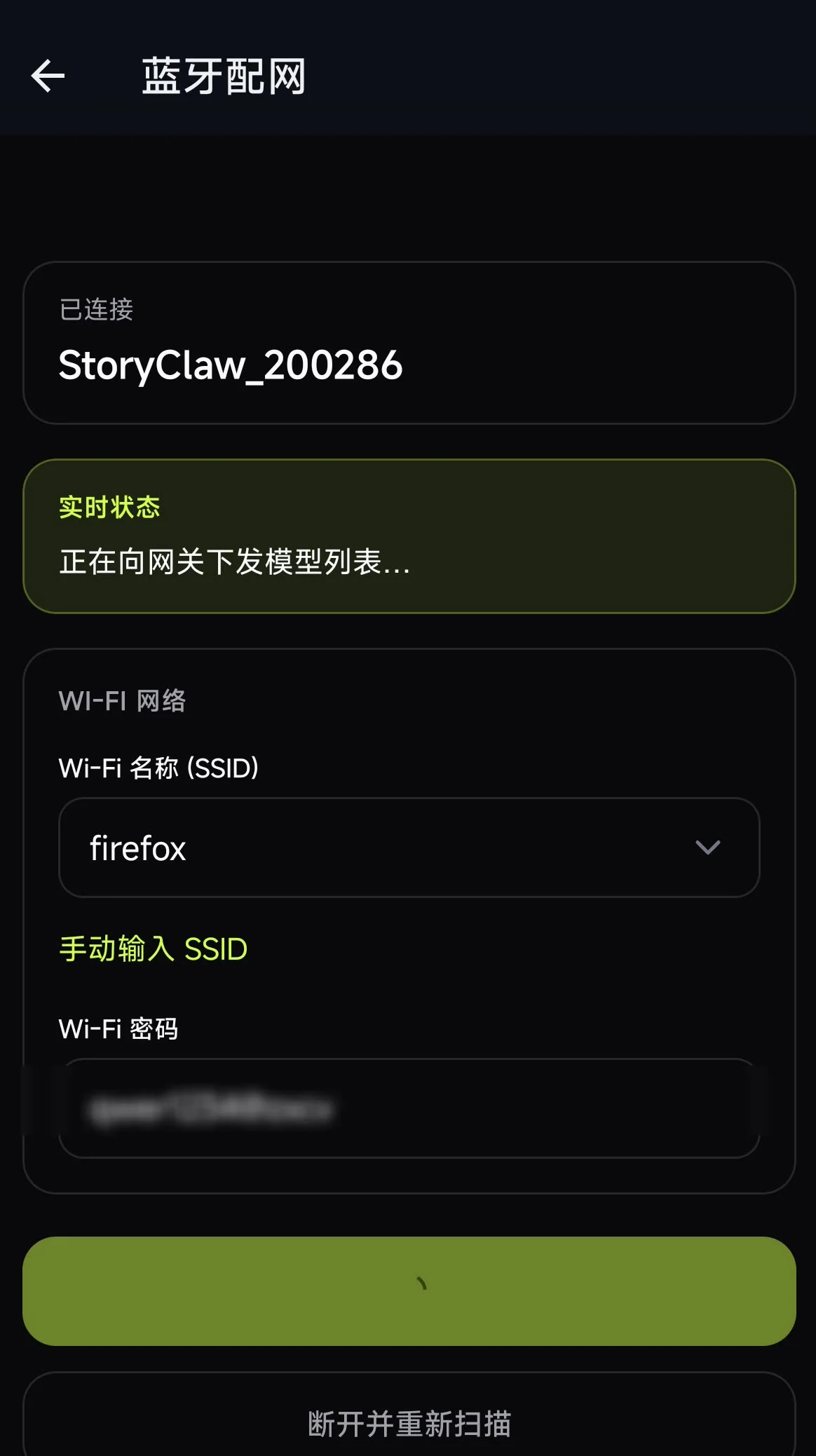
在设备列表中点击目标设备(名称格式为 StoryClaw_XXXXXX),App 自动通过蓝牙连接设备。连接成功后填写:
Tap the target device (name format: StoryClaw_XXXXXX). The App connects via Bluetooth automatically. Once connected, fill in:
- WiFi 名称(SSID):从下拉列表选择,或点击「手动输入 SSID」填入WiFi Name (SSID): select from the dropdown or tap "Enter SSID manually"
- WiFi 密码:输入该 WiFi 的连接密码WiFi Password: enter the password for the selected WiFi
苹果手机(iOS)注意:iOS 系统限制,App 无法扫描周边 WiFi 列表,下拉列表中只会显示当前手机已连接的 WiFi。建议配网前将手机连接到与设备相同的 WiFi,或直接点击「手动输入 SSID」填写 WiFi 名称和密码。
iPhone (iOS) note: Due to iOS restrictions, the App cannot scan nearby WiFi networks — the dropdown only shows the WiFi your phone is currently connected to. Before setup, connect your phone to the same WiFi you want the device to use, or tap "Enter SSID manually" to type the WiFi name and password directly.
填写完成后点击页面底部的提交按钮,等待配网结果。
After filling in the details, tap the submit button at the bottom and wait for the result.
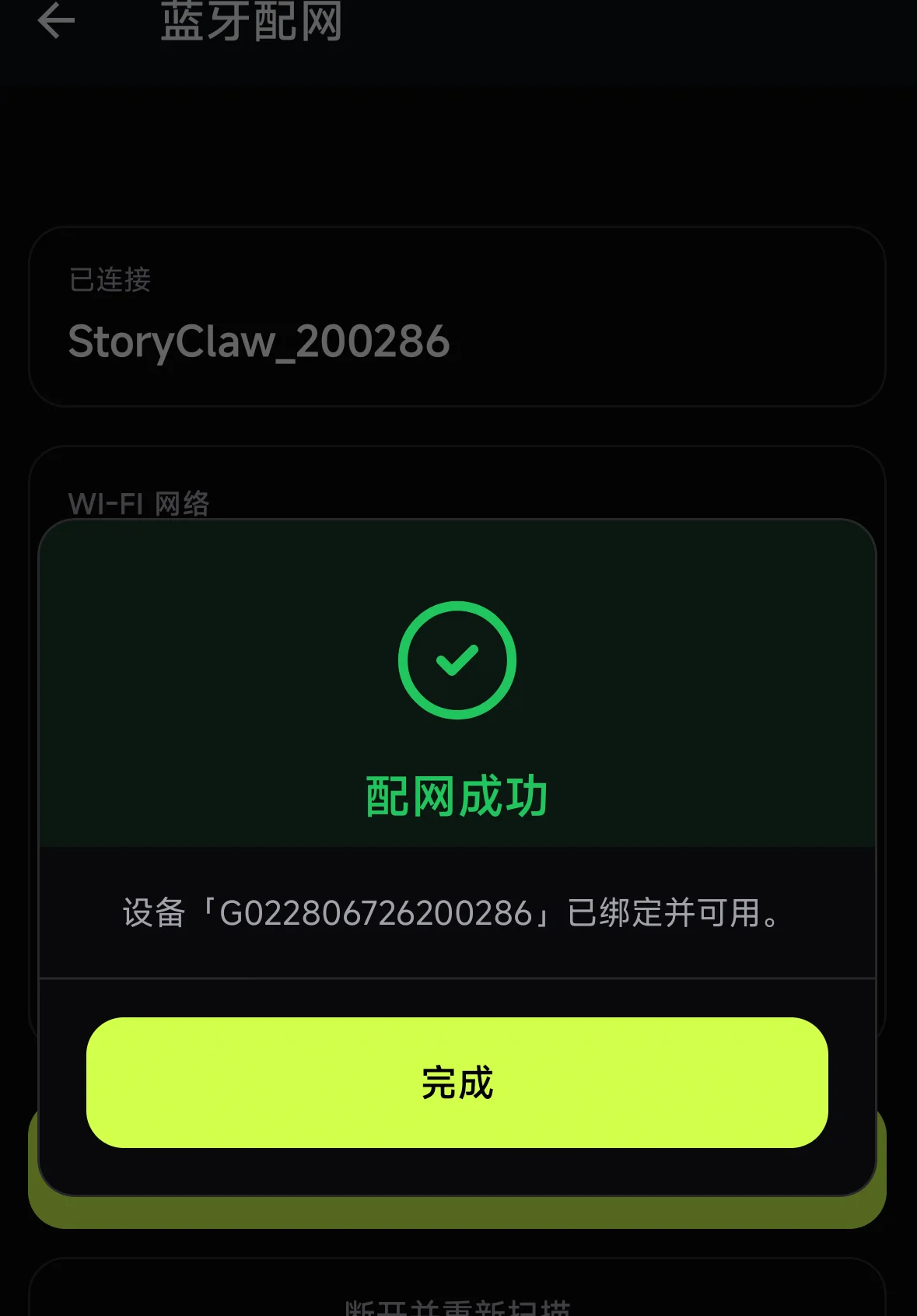
配网成功,设备已绑定 Setup complete — device bound
看到 「配网成功」 弹窗,表示设备已成功连接 WiFi 并完成账号绑定。点击「完成」返回对话页,即可正常使用。
When the "Setup Complete" dialog appears, the device has connected to WiFi and completed account binding. Tap "Done" to return to the chat page and start using the device.
常见问题 Troubleshooting
- 确认手机蓝牙已开启,并已授予 App 蓝牙权限(系统设置 → 应用权限)Confirm Bluetooth is on and the App has Bluetooth permission (System Settings → App Permissions)
- 缩短与设备的距离,保持在 5 米以内Move closer to the device — stay within 5 meters
- 确认设备已正常通电,指示灯亮起Confirm the device is powered on and indicator lights are on
- 点击「停止扫描」后重新点击「扫描设备」Tap "Stop Scan", then tap "Scan for Devices" again
- 检查 WiFi 名称和密码是否填写正确(区分大小写)Check that the WiFi name and password are correct (case-sensitive)
- 确认目标 WiFi 为 2.4GHz 频段,部分设备不支持 5GHzEnsure the target WiFi is 2.4GHz — some devices don't support 5GHz
- 点击「断开并重新扫描」,重新选择设备再试一次Tap "Disconnect and Rescan", reselect the device and try again
- iOS 系统限制,App 无法扫描周边 WiFi,下拉列表只显示手机当前连接的 WiFiiOS restricts WiFi scanning — the dropdown only shows the WiFi your phone is currently connected to
- 推荐做法:配网前先将手机连接到目标 WiFi(即设备要使用的那个),再进行蓝牙配网,下拉列表会自动填入该 WiFi 名称Recommended: Before setup, connect your phone to the target WiFi (the one the device will use) — the dropdown will auto-fill with that WiFi name
- 若无法提前切换,可点击「手动输入 SSID」直接填写 WiFi 名称和密码If you can't switch first, tap "Enter SSID manually" to type the WiFi name and password directly
- 该按钮仅在对话页检测到设备未联网时出现,设备已联网则不显示This button only appears when the app detects the device is offline — it's hidden when the device is online
- 若确认设备未联网但按钮不显示,尝试关闭 App 重新打开If the device is offline but the button isn't showing, close and reopen the App