
Cloud ClawBot Setup (New)
Open the ClawBot config, set up your provider API Key, and start chatting with your AI agent.
You must complete the API Key setup below, or the device will not work.
Step 1: Open ClawBot Config
Log in to storyclaw.com. In the left CloudClaw panel, find your assigned device (e.g. Cloud-59mswr), expand it, and click Config.
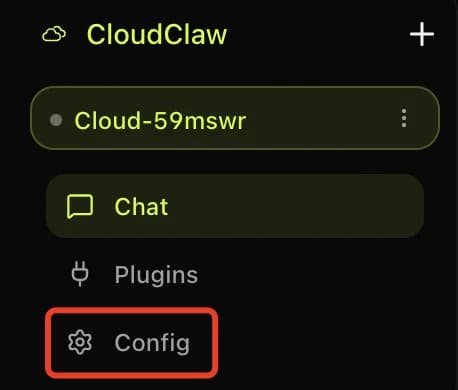
Expand your CloudClaw device and click "Config" to open settings.
Step 2: Set Up Provider API Key
In Config, click Provider on the left. Make sure the StoryClaw toggle is on, select your region, then pick your key from the API Key dropdown (or click + Create Key to create one). Click Save.
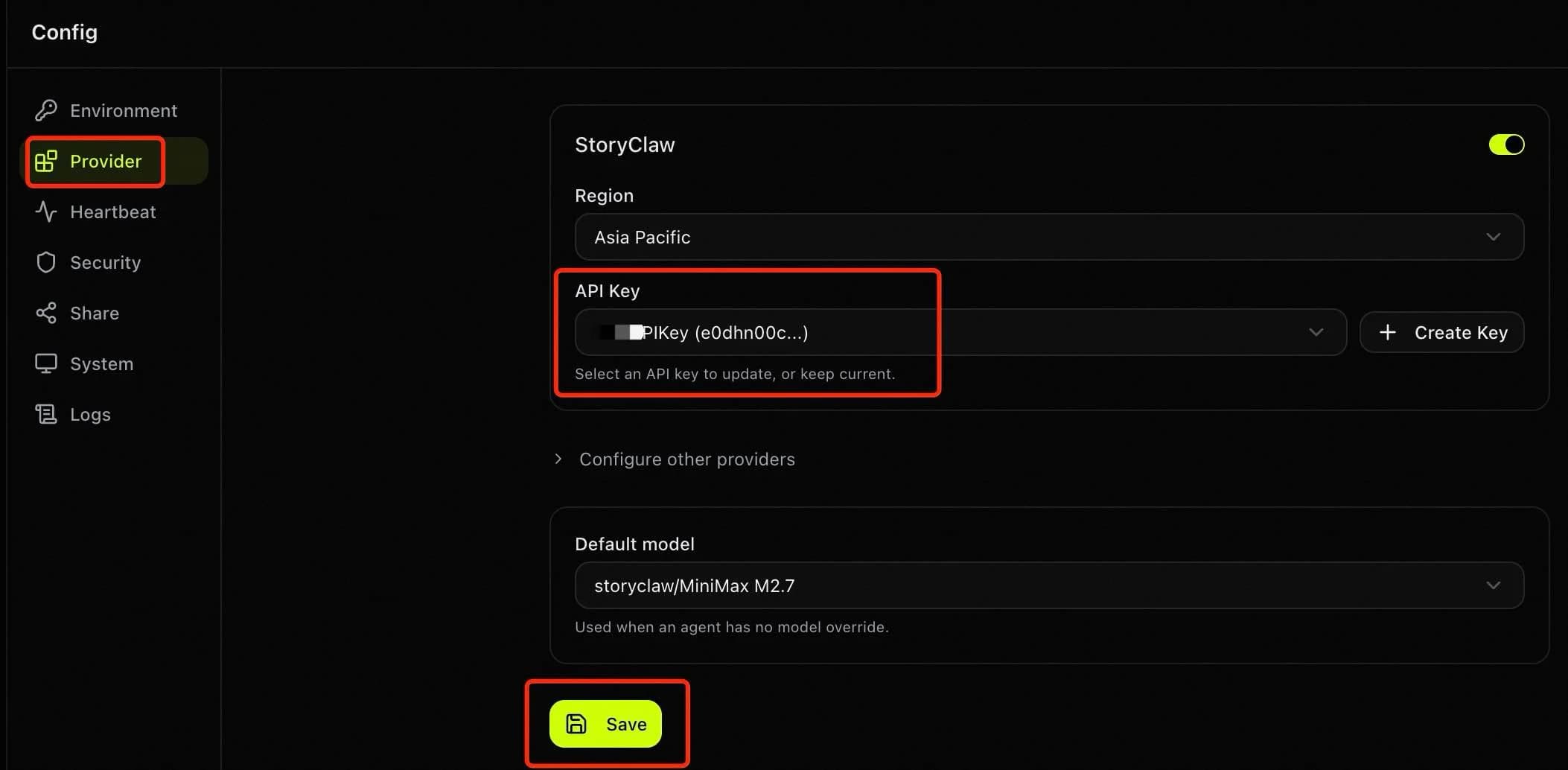
After selecting the key, click "Save". The client restarts automatically — wait a few seconds.
Tip
If a key already appears in the dropdown, just select it — no need to create a new one. After saving, the client restarts automatically and will be back online in a few seconds.
Step 3: Start Using
Once saved, the device restarts and comes back online in seconds. Click Chat to start talking with your AI agent.
Done
Setup complete. You can now use all features: smart chat, document analysis, report generation, AI video, image generation, and more. Contact your admin if you run into any issues.