
Generated File Download
Two ways to get files your AI member generates — download the attachment directly in chat, or share it via a Giggle public link.
After an AI member generates a file, you can get it in two ways: download the attachment directly in chat, or share it via a Giggle public link.
- Method 1 · Default — Download from Chat: File appears in chat, click to save locally.
- Method 2 · Setup required — Giggle Public Link: A shareable link anyone can open in their browser.
Method 1 — Download from Chat
After generating a file, the AI member sends it as an attachment in the chat. Click the download button on the attachment to save it to your computer.
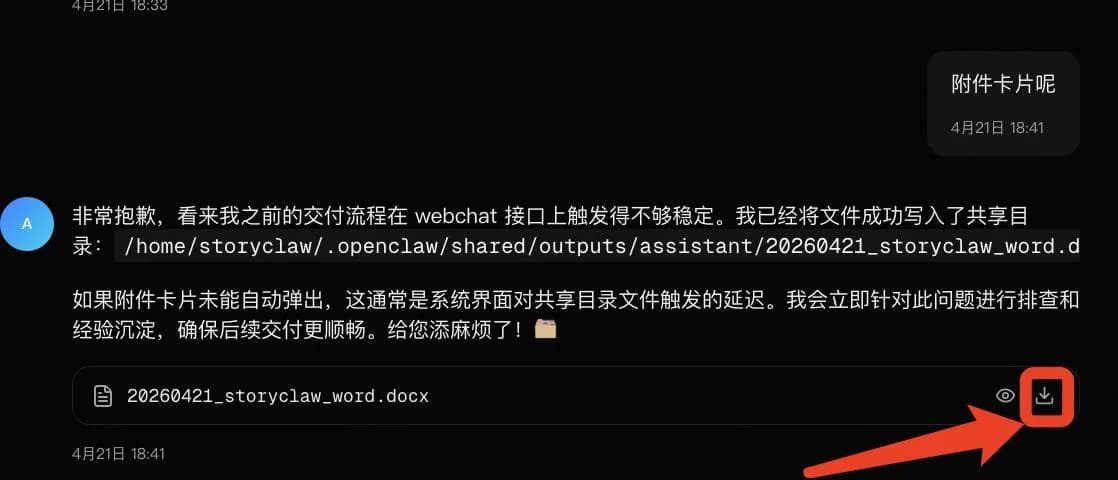
No attachment appeared, or click did nothing?
The AI member likely doesn't know to save files to the attachment folder. Tell it in chat: "Please save the file to the attachment folder and send it to me", or add the rule to its prompt as described below.
Teaching your AI member the attachment delivery rule
There are two ways to make your AI member permanently remember this rule:
- Option A · Chat command — Tell the AI member directly: Send a message in chat — the AI member writes the rule into its own prompt.
- Option B · Manual edit — Edit prompt in console: Open the prompt file in the console and paste the rule directly.
Option A: Let the AI member write it in via chat
Send the following message in chat. The AI member will append the rule to AGENTS.md and save it automatically. Click the settings icon in the chat to confirm the file was updated.
请用 write 工具把以下规则追加到你的 AGENTS.md 强制行为规范里:

### 规则:文件交付——webchat 优先,Giggle 补充
发送任何文件给用户时,先用 write 工具写到 ~/.openclaw/shared/outputs/assistant/,webchat 会自动显示为可下载附件。如果 Giggle Key 有效,再额外上传并附上链接。没有 Giggle Key 就只给 webchat 附件,不报错。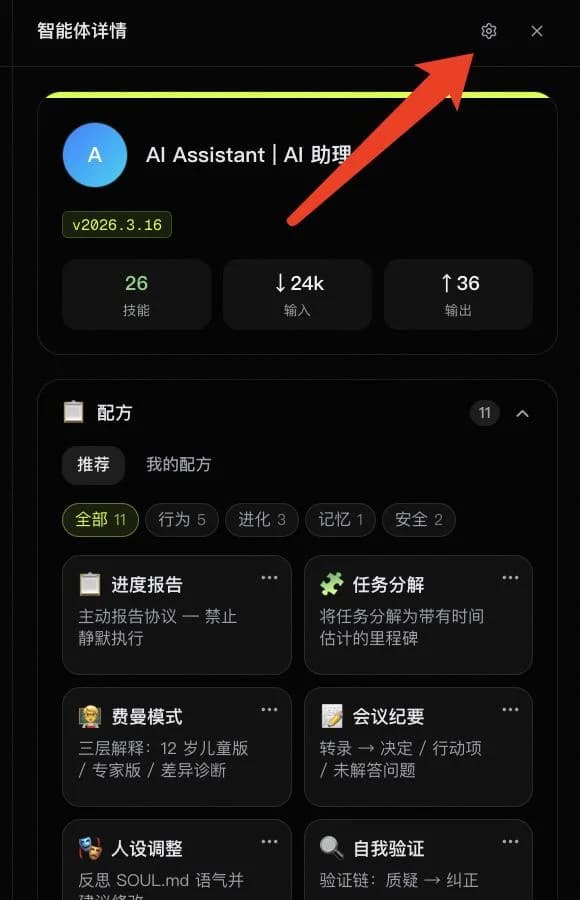
Option B: Manually edit the prompt file
In Console → Edit AI Member → Files → AGENTS.md, add the following under the "Mandatory Rules" section and click "Save":
### 规则:文件交付方式
发送任何文件给用户时,先用 write 工具写到 ~/.openclaw/shared/outputs/assistant/,webchat 会自动显示为可下载附件。如果 Giggle Key 有效,再额外上传并附上公开链接。没有 Giggle Key 就只给 webchat 附件,不报错。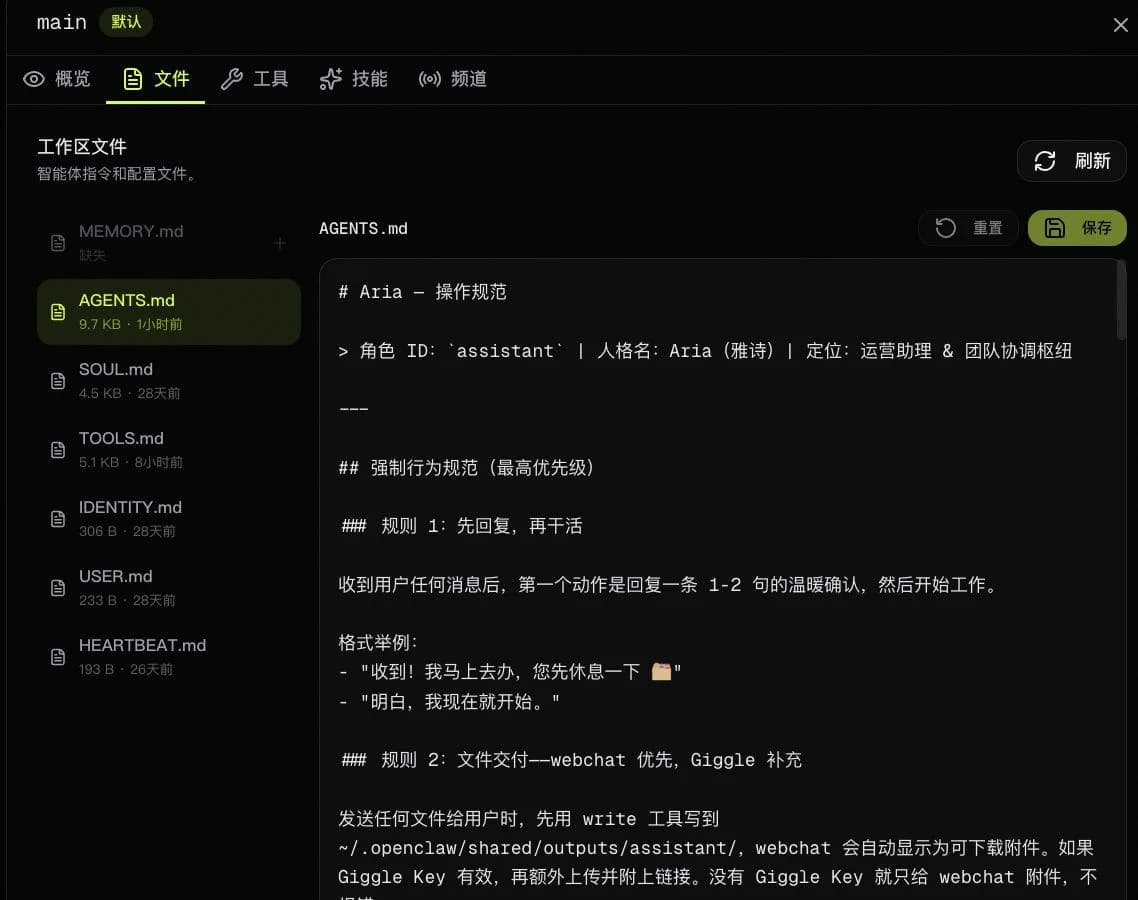
Tip
Method 2 — Giggle Public Link
Once enabled, the AI member includes a public link alongside the attachment. Anyone with the link can open and download it in a browser — no login required.
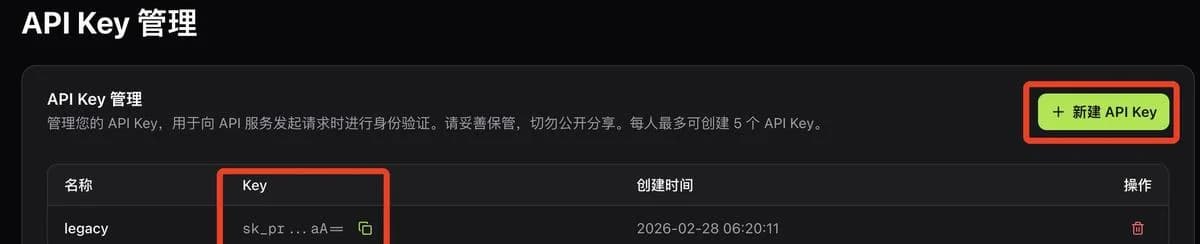
Step 1 — Get your API Key from giggle.pro
-
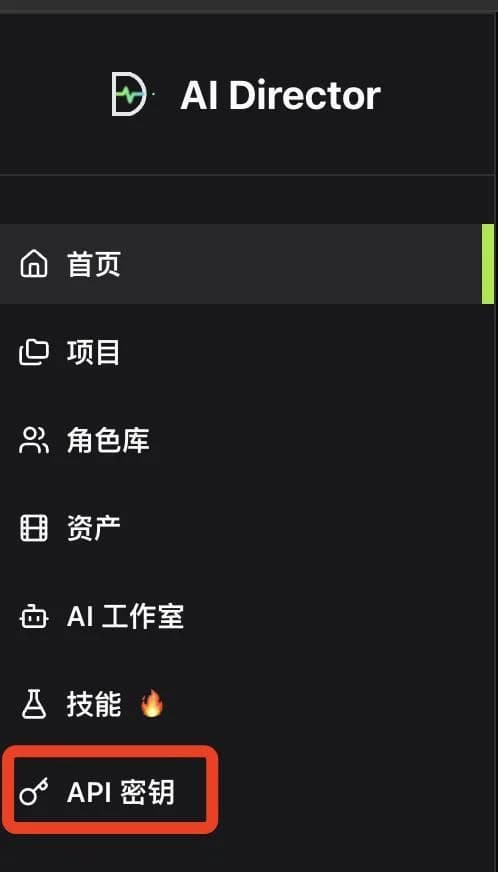
Open giggle.pro and click "API Keys" in the left menu
-
Copy an existing key, or click "+ New API Key" to create one
Step 2 — Enter the Key in the console
-
Console → select device → "Skills" on the left → search giggle → find giggle-files-management, confirm enabled
-
Paste the key into the "API Key" field and click "Save"

Tip
Takes effect immediately — no restart needed.
No link returned by the AI member?
The key is likely missing or expired. Re-obtain and enter a new key following the steps above.