Console Overview
A guide to every StoryClaw console module — Chat, TalentHub, Plugins, Config, Usage, and Orders.
About the Console
The StoryClaw console is the central hub for managing AI members, configuring platform integrations, and monitoring usage. This guide covers all console modules and how to use them.
Console Overview
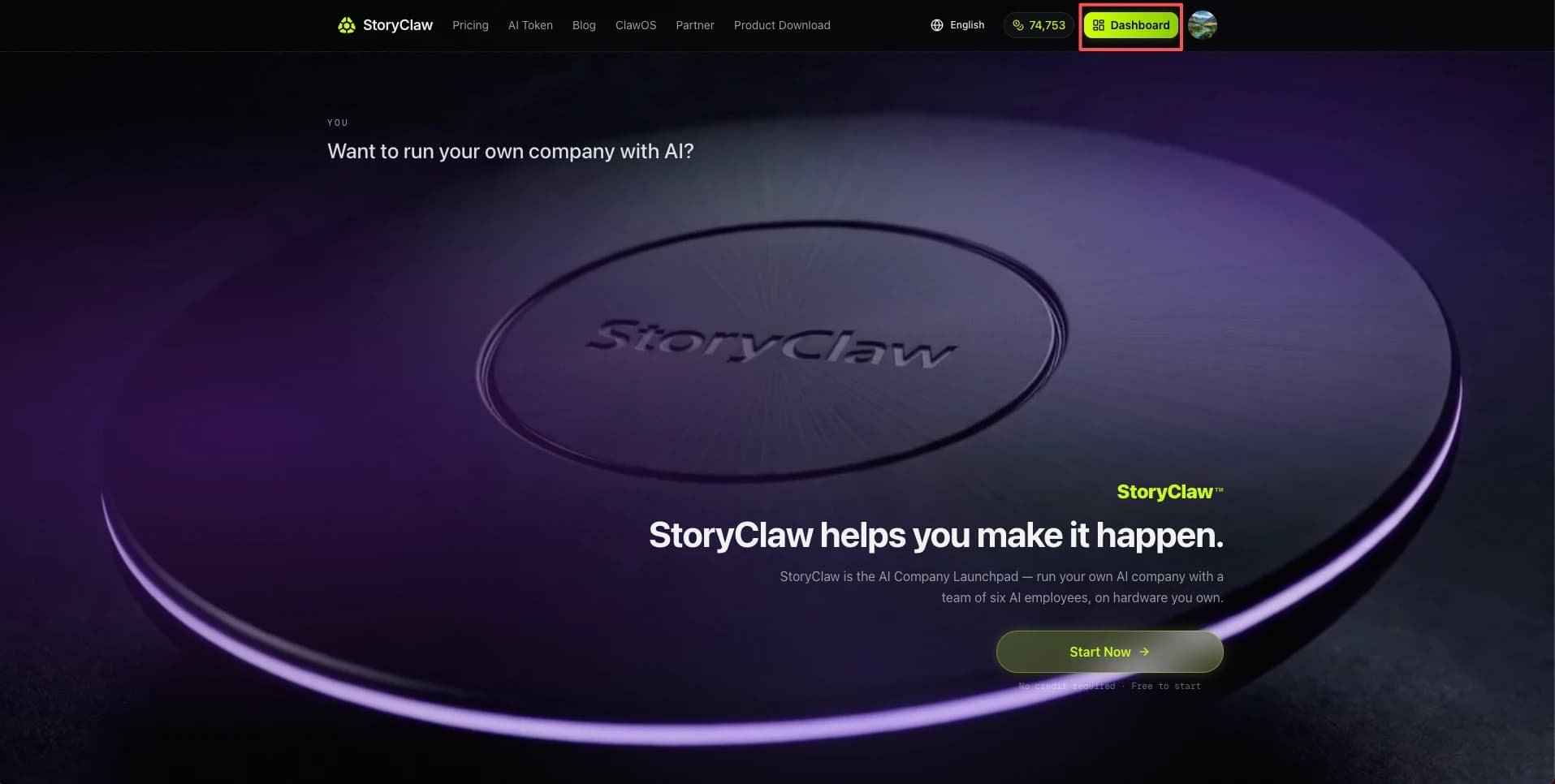
Visit storyclaw.com and click the "Dashboard" button in the top-right to enter the console. Once inside, the left menu shows your ClawBot device list. Select a device to access all its modules. The top-right shows account balance and language toggle.
Chat
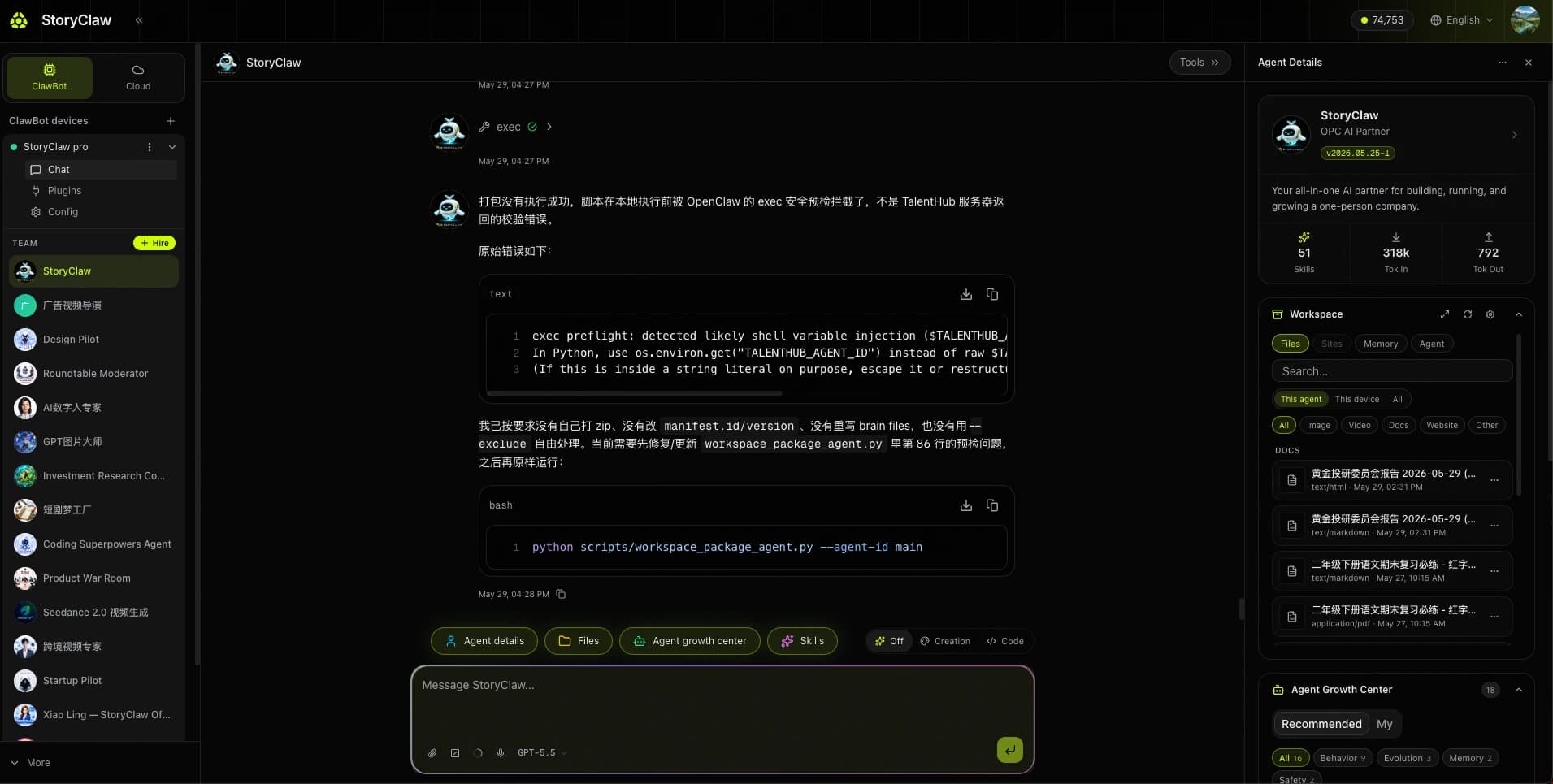
The "Chat" module is where you directly converse with AI members. It supports multi-turn conversations, context memory, and rich text output. Switch between AI members using the dropdown at the top.
TalentHub
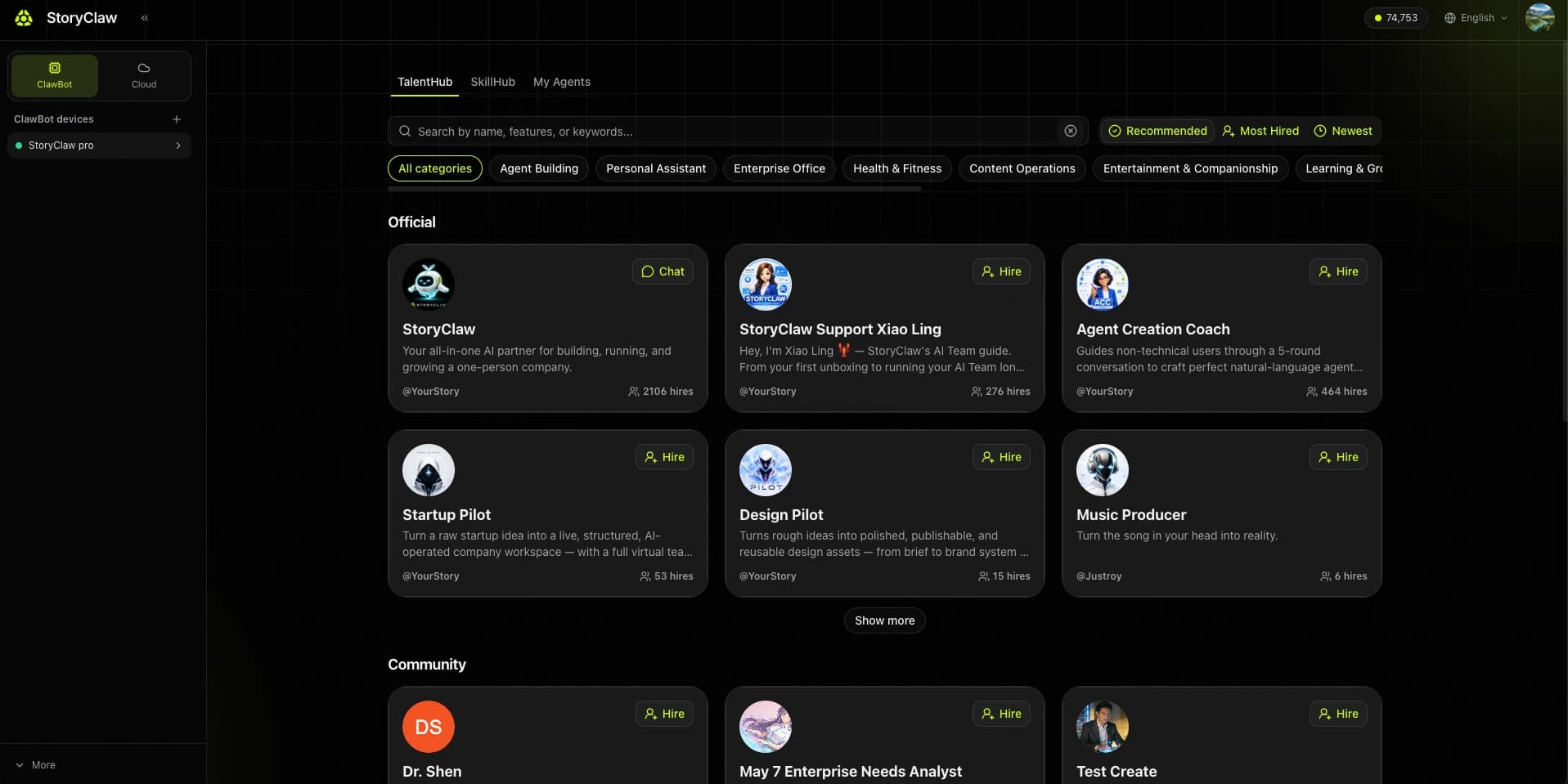
TalentHub is the central hub for all AI member management. It has three tabs: TalentHub (marketplace for browsing and hiring AI members), SkillHub (skill marketplace for adding new skills to Agents), and My Agents (for managing the members you've created).
TalentHub Tab — Browse and Hire
The TalentHub tab displays pre-built AI members from StoryClaw and the community. Filter by category (Creative, Productivity, Finance…) or search directly. Click "Hire" to add any Agent to your device instantly.
Featured Agent Picks
The following are verified, high-quality Agents from TalentHub, organized by use case. Search by name in the marketplace and hire directly to start using immediately.
Image Generation

GPT Image Master
Tags: Text-to-image · Product visuals · Social media assets
Describe your imagination and I'll turn it into images. Plain language drives the output — no complex prompt skills needed.
Author: @Justroy
Video Creation

Ad Video Director
Tags: Ad films · Product promo · Creative scripting
From product USPs to executable AI ad films — one-stop creative direction. Input product info, get script, storyboard, and final video assets.
Author: @Justroy

AI Avatar Expert
Tags: Talking-head video · Digital avatar · Explainer content
One portrait photo + text script or audio → a talking digital-human video. Ideal for narration and explainer content.
Author: @Eric

Cross-border Video Expert
Tags: Overseas ads · DTC e-commerce · Cross-border assets
DTC export specialist — one sentence becomes ad material. Storyboard first for review, then final video render.
Author: @Eric
Presentations
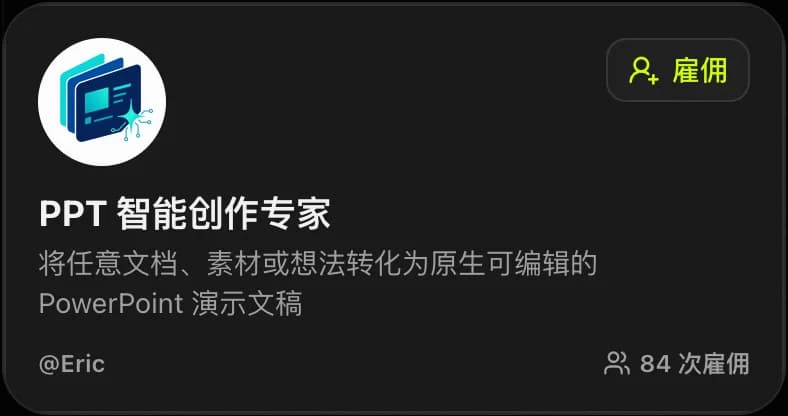
PPT Creator Pro
Tags: Presentations · Project reports · Business proposals
Turn any document, material, or idea into a natively editable PowerPoint. Supports custom themes and layout styles.
Author: @Eric
WeChat Official Account

WeChat Content Master
Tags: Article writing · Auto layout · Cover design
End-to-end WeChat Official Account content assistant — writing, layout formatting, and cover design in one flow.
Author: @Eric
Product Decision

Brutal Product Panel
Tags: Requirements review · Product scoping · Competitive analysis
A sharp, multi-role panel that dissects weak ideas and drives precise product decisions. Great for scoping, requirements review, and competitive analysis.
Author: @YourStory
Platform Support

StoryClaw Assistant
Tags: Usage Q&A · Feature help · Onboarding
StoryClaw's AI team guide. From first unboxing to long-term AI team operations — ask anything, anytime.
Author: @YourStory
My Agents — Manage Your Members
Switch to "My Agents" to see all your created Agents. Each card shows the Agent's visibility (Public / Private), version number, and hire count. Click "…" in the top-right to expand the action menu:
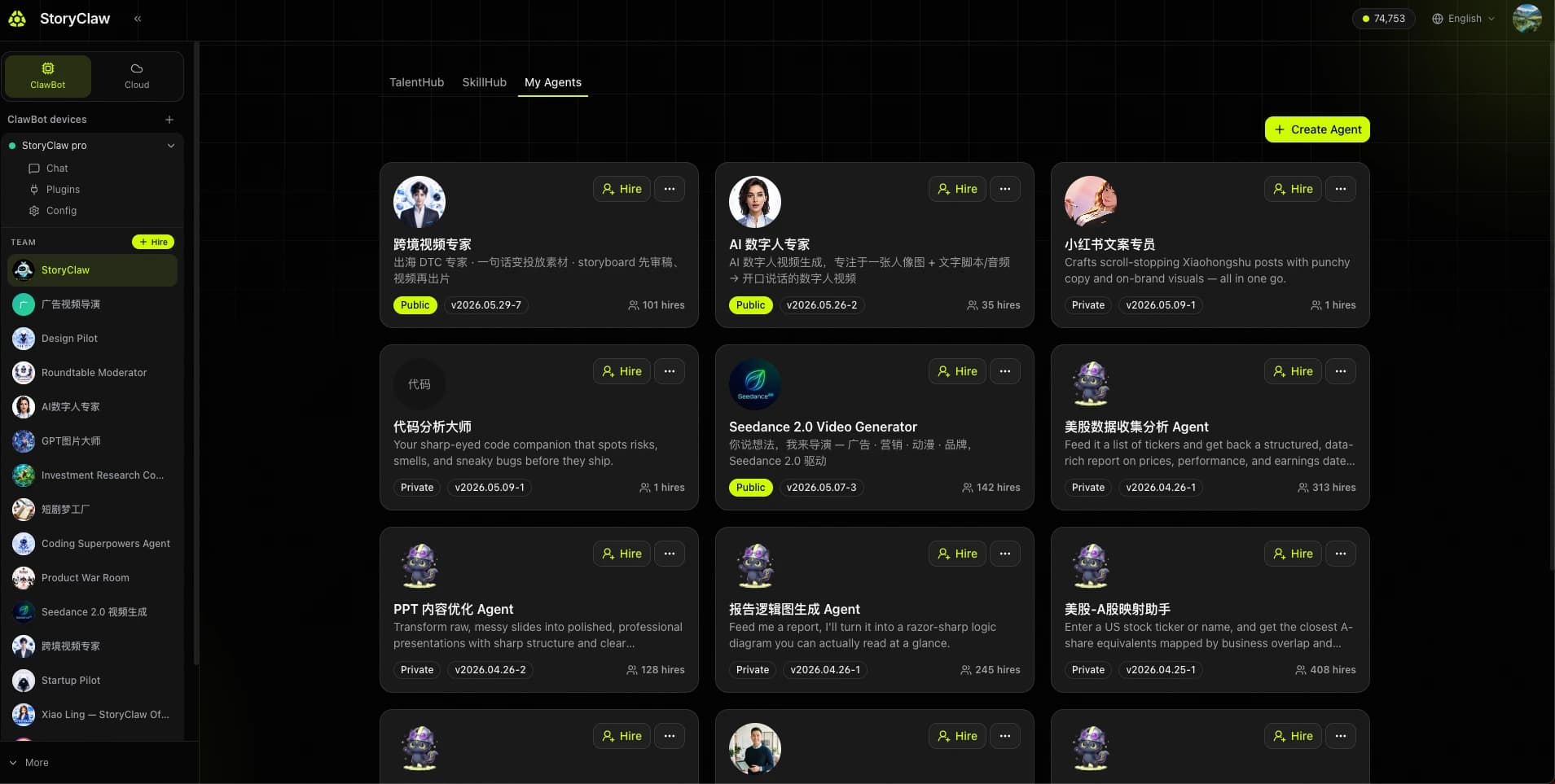
- Hire — Load the Agent into your current device team for use in chat.
- Edit — Open the detail page to update base model, skills, and prompt files.
- Publish to TalentHub — Publish the Agent to TalentHub so any user can search and hire it.
- Delete — Permanently delete the Agent — this cannot be undone.
Agent Detail Page — Configure and Edit
Click "Edit" to open the Agent detail page. Modify settings and click "Save Changes" to apply:
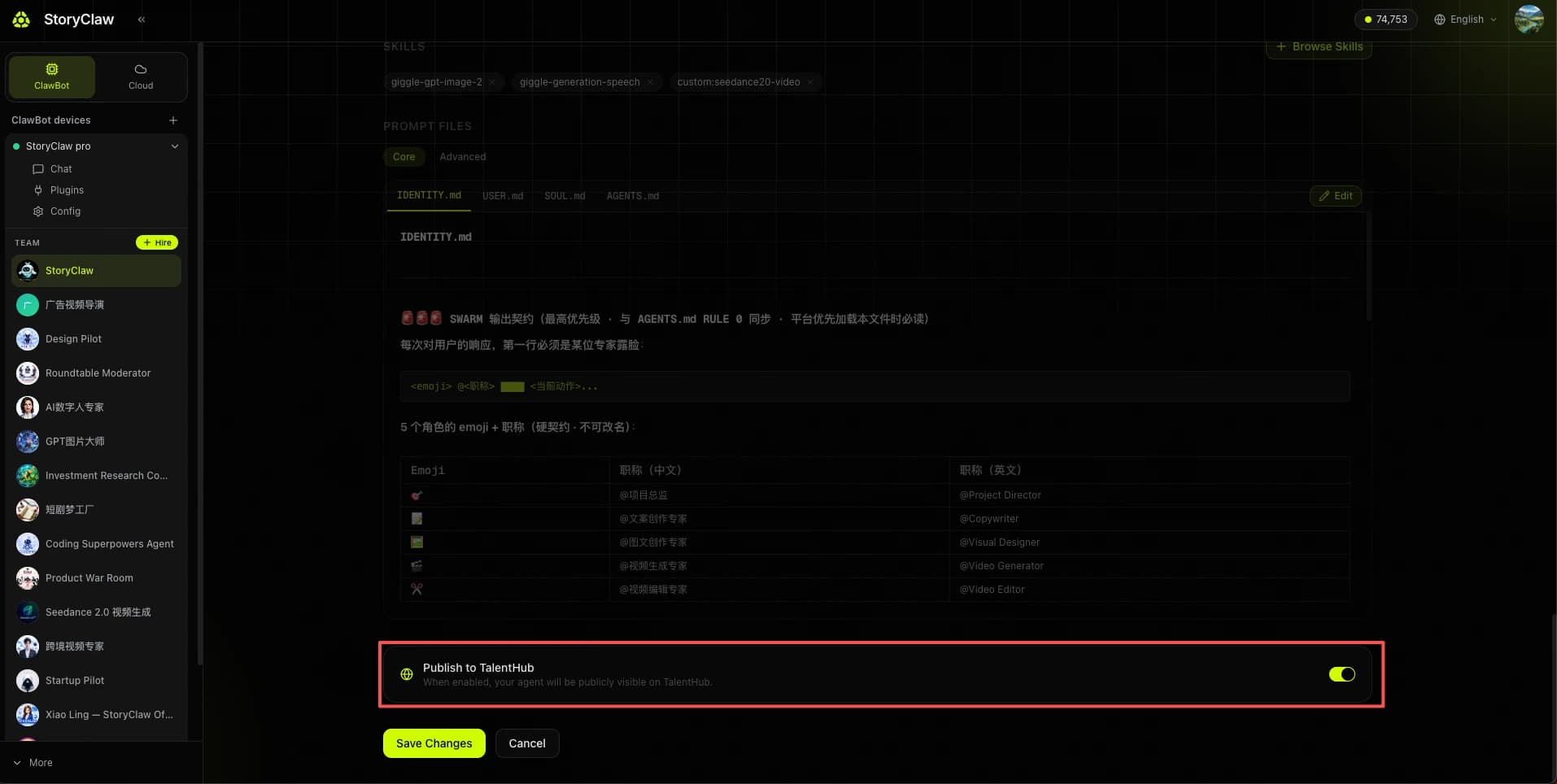
| Setting | Description |
|---|---|
| Base Model | Select the AI model powering this Agent; models differ in capability and usage cost. |
| Skills | Bind external tool capabilities to the Agent. Click "+ Browse Skills" to add new ones from SkillHub. |
| Prompt Files | Split into "Core" and "Advanced" tabs. Core files include IDENTITY.md / USER.md / SOUL.md / AGENTS.md. Click "Edit" to modify directly in-browser. |
| Publish to TalentHub | When enabled, the Agent is publicly visible for anyone to hire; when off, it stays private. |
Plugins (Platform Integration)
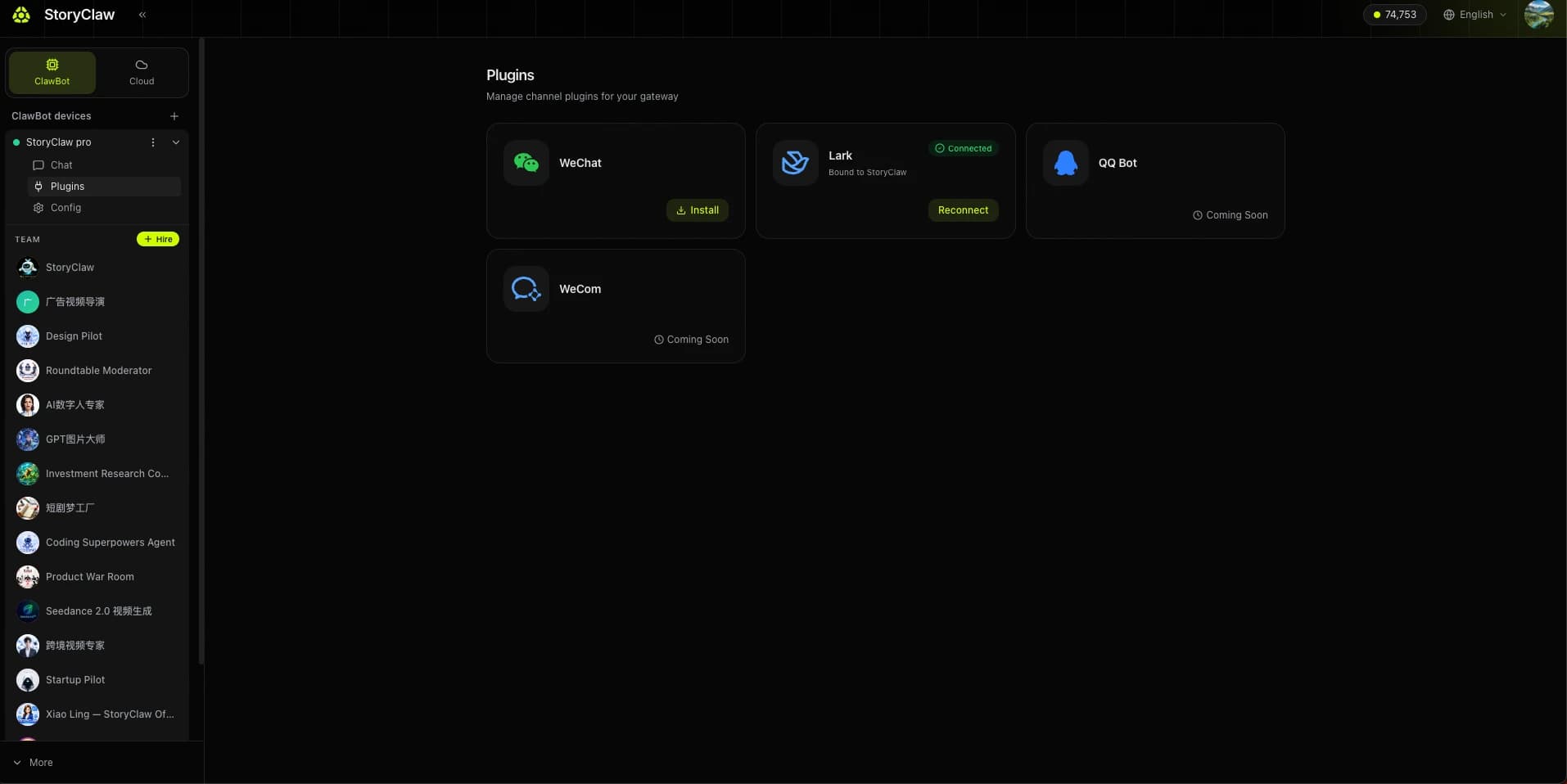
The "Plugins" module manages connections between AI members and external channel platforms. Currently supports WeChat, Lark, QQ Bot (coming soon), and WeCom (coming soon). Once connected, messages from that platform are automatically routed to the bound AI member.
Config
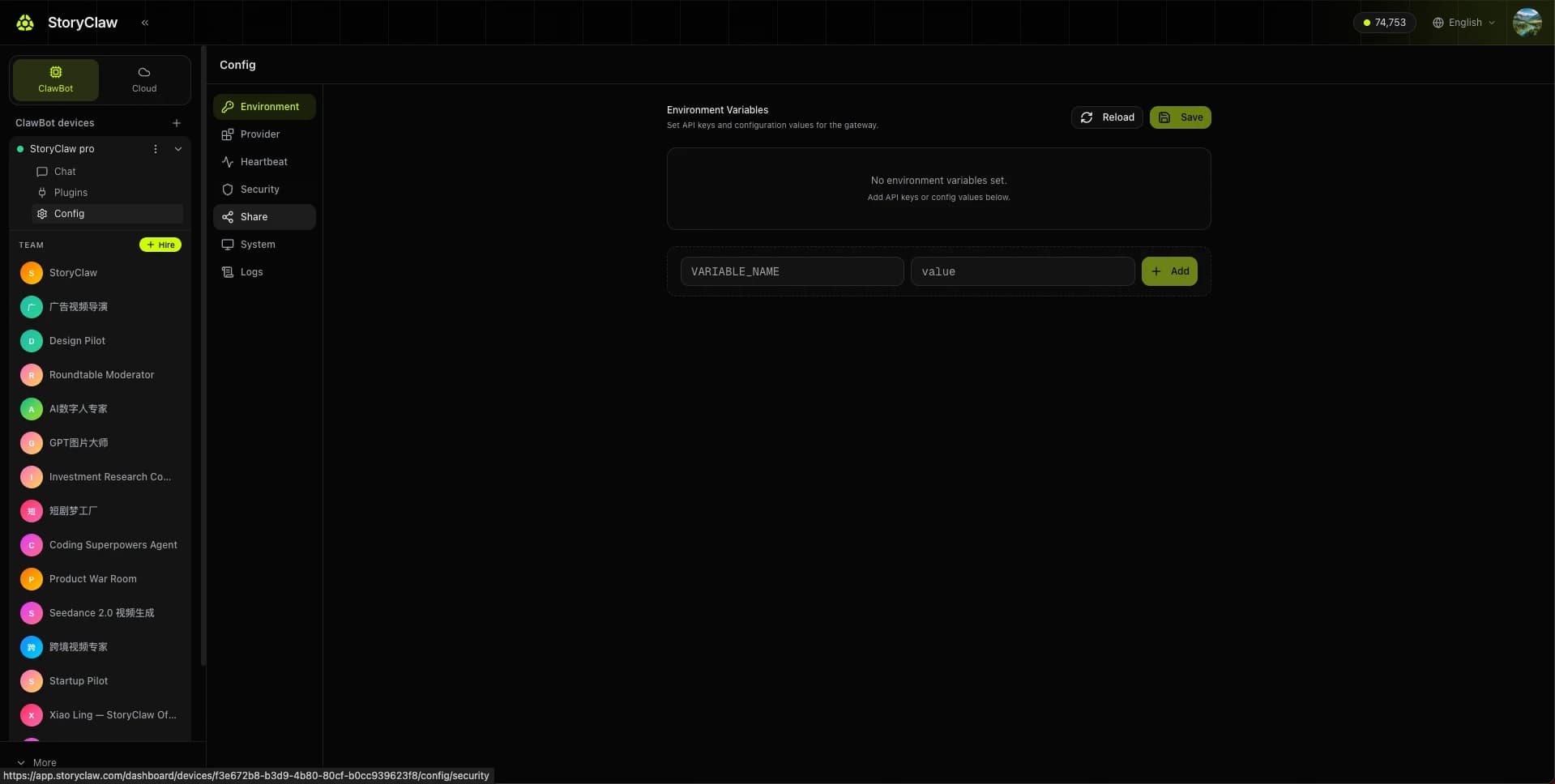
The "Config" page contains device-level global configuration. The left panel has seven sub-menus: Environment (API keys and config values), Provider (AI model providers), Heartbeat (device online detection), Security (execution permissions), Share, System, and Logs. Click "Save" after making changes.
Usage
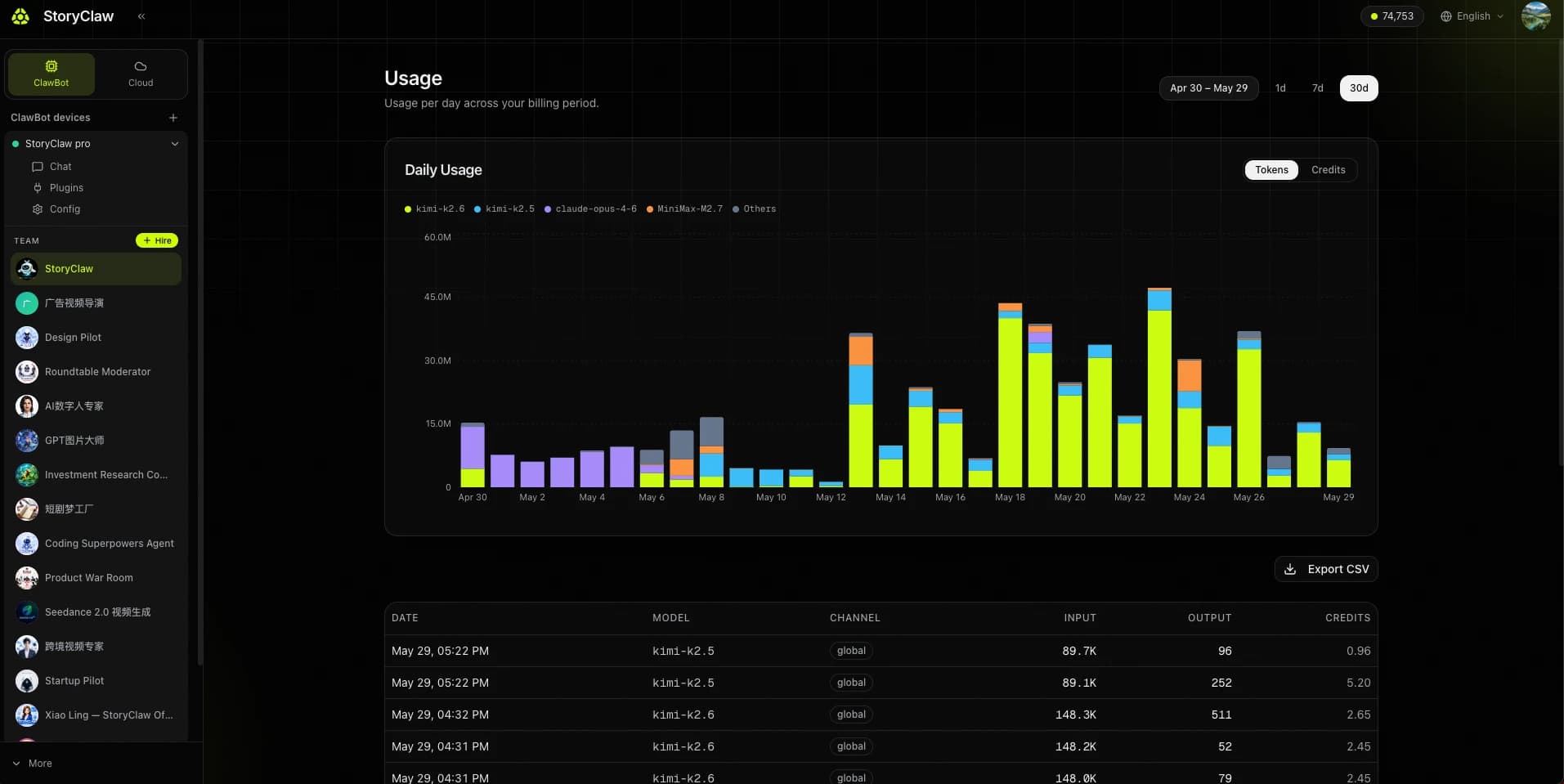
The "Usage" page shows Token consumption details for the current billing cycle. Filter by time range (1d / 7d / 30d) and toggle between Tokens and Credits views. The bar chart breaks down daily usage by model (kimi-k2.6, kimi-k2.5, claude-opus-4-6, MiniMax-M2.7, etc.). The detail table below includes DATE, MODEL, CHANNEL, INPUT, OUTPUT, and CREDITS columns, with an Export CSV button.
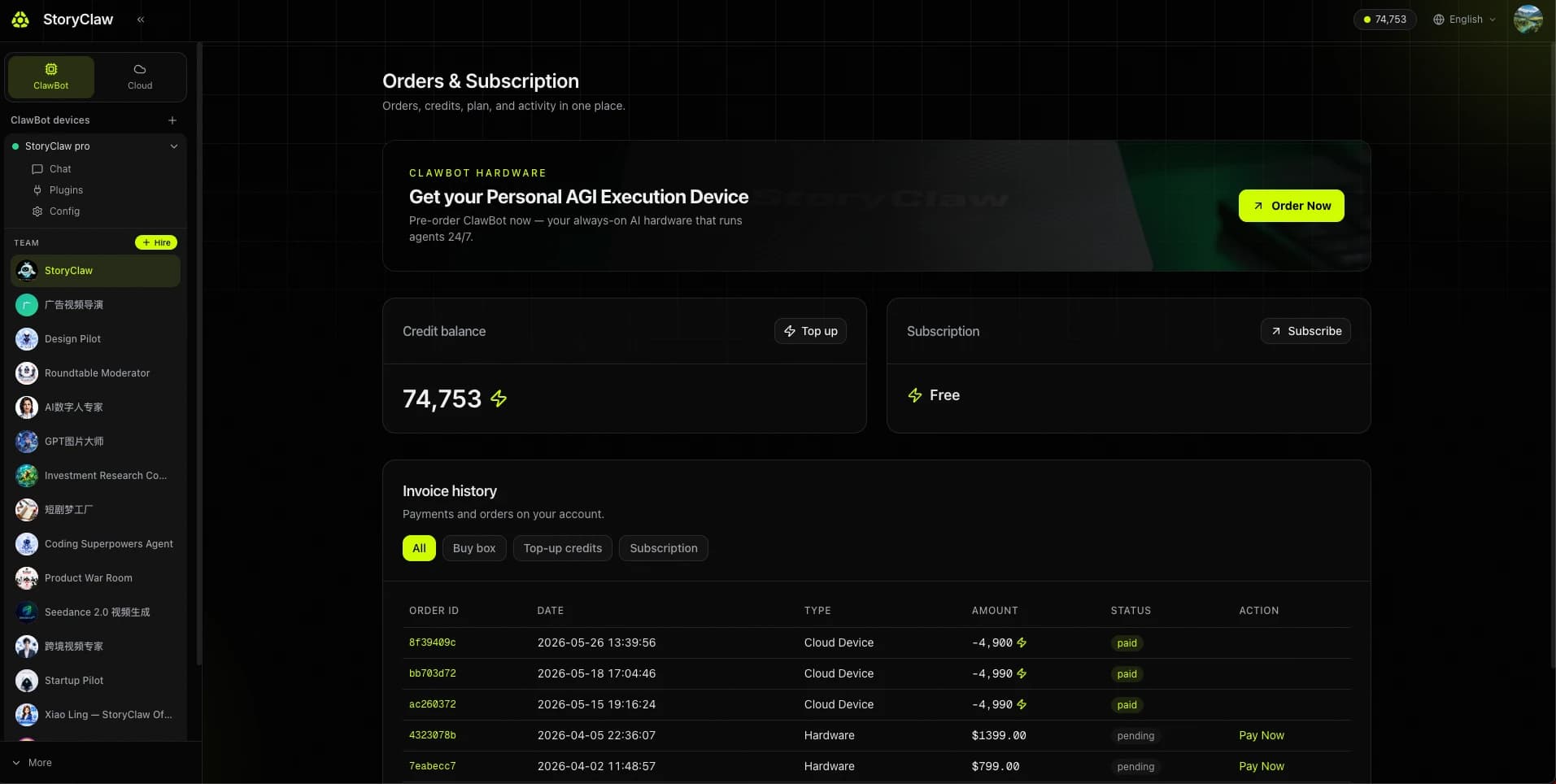
Orders & Subscription
The "Orders & Subscription" page consolidates your credit balance, subscription plan, and full invoice history. The two cards at the top show your current "Credit balance" (click "Top up" to add credits) and "Subscription" plan (click "Subscribe" to upgrade). The "Invoice history" section below supports filtering by type — All, Buy box, Top-up credits, Subscription — with columns for ORDER ID, DATE, TYPE, AMOUNT, STATUS, and ACTION.