Create Your First AI Member
Hire a ready-made Agent from TalentHub, or create a custom Agent from a natural-language description.
There are two ways to create an AI member: hire a ready-made Agent from TalentHub, or describe your needs and let the system generate one automatically.
- Option A · Recommended — Hire from TalentHub: Pre-built Agents, one-click hire, ready to use.
- Option B — Create from scratch: Describe your needs in natural language — AI generates a custom Agent.
Option A: Hire from TalentHub (Recommended)
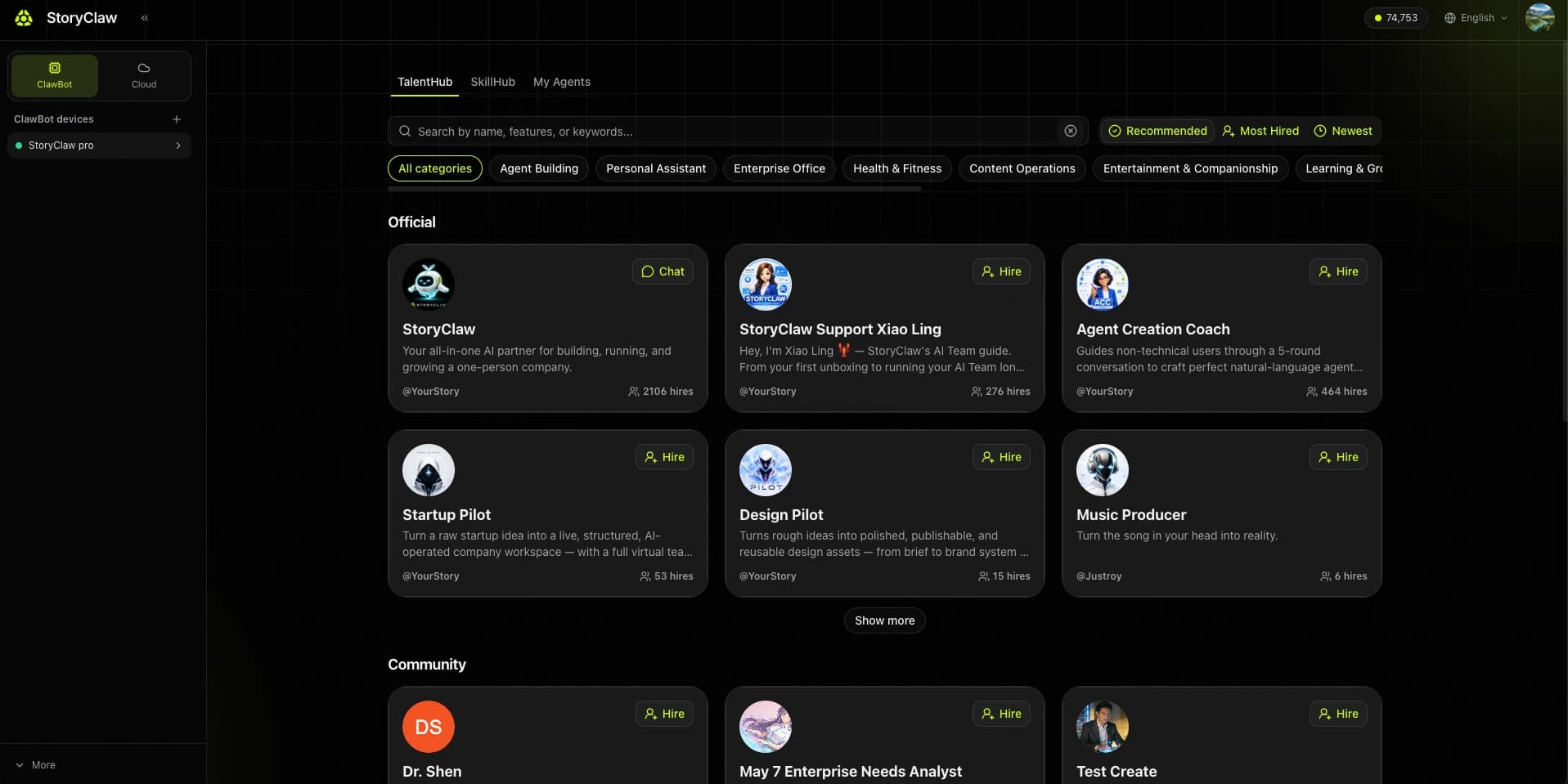
1. Open TalentHub and browse Agents
Click "TalentHub" in the left console menu. Browse by category (Creative, Productivity, Finance…) or use the search box to find the Agent you need.
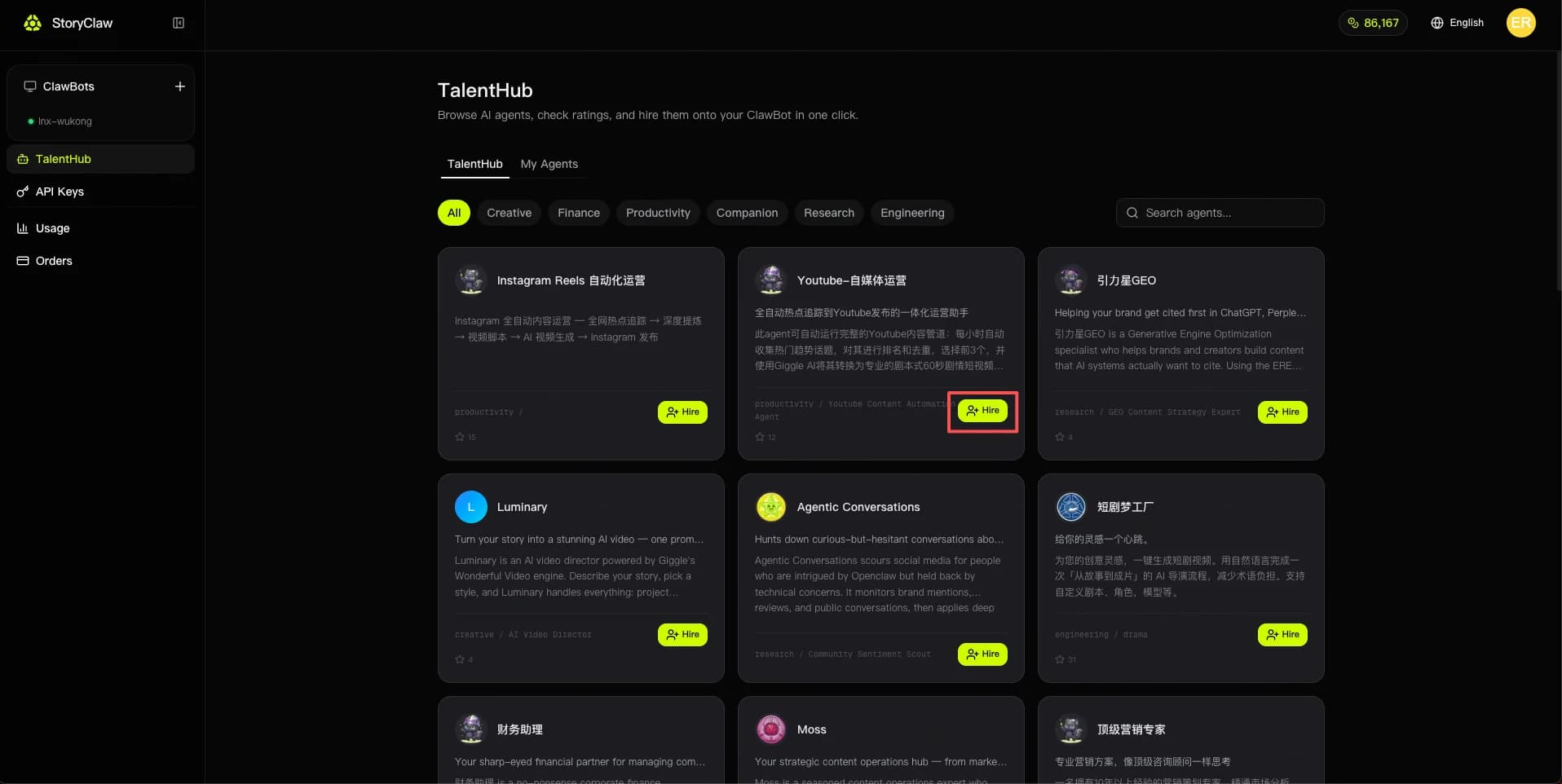
2. Click "Hire"
Once you find the Agent you want, click the "Hire" button on its card. The Agent is immediately added to your device with no additional setup required.
Option B: Create a Custom Agent
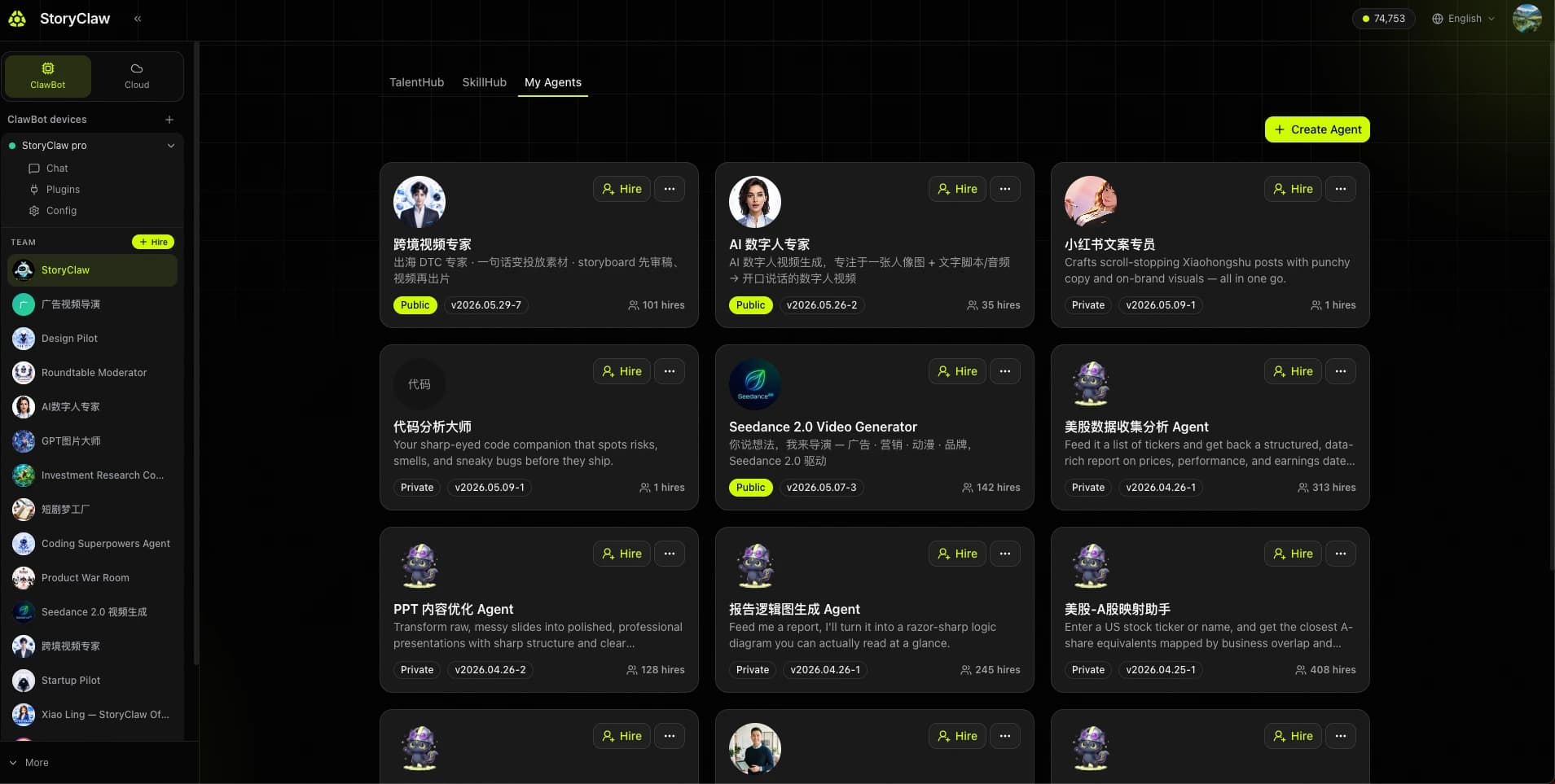
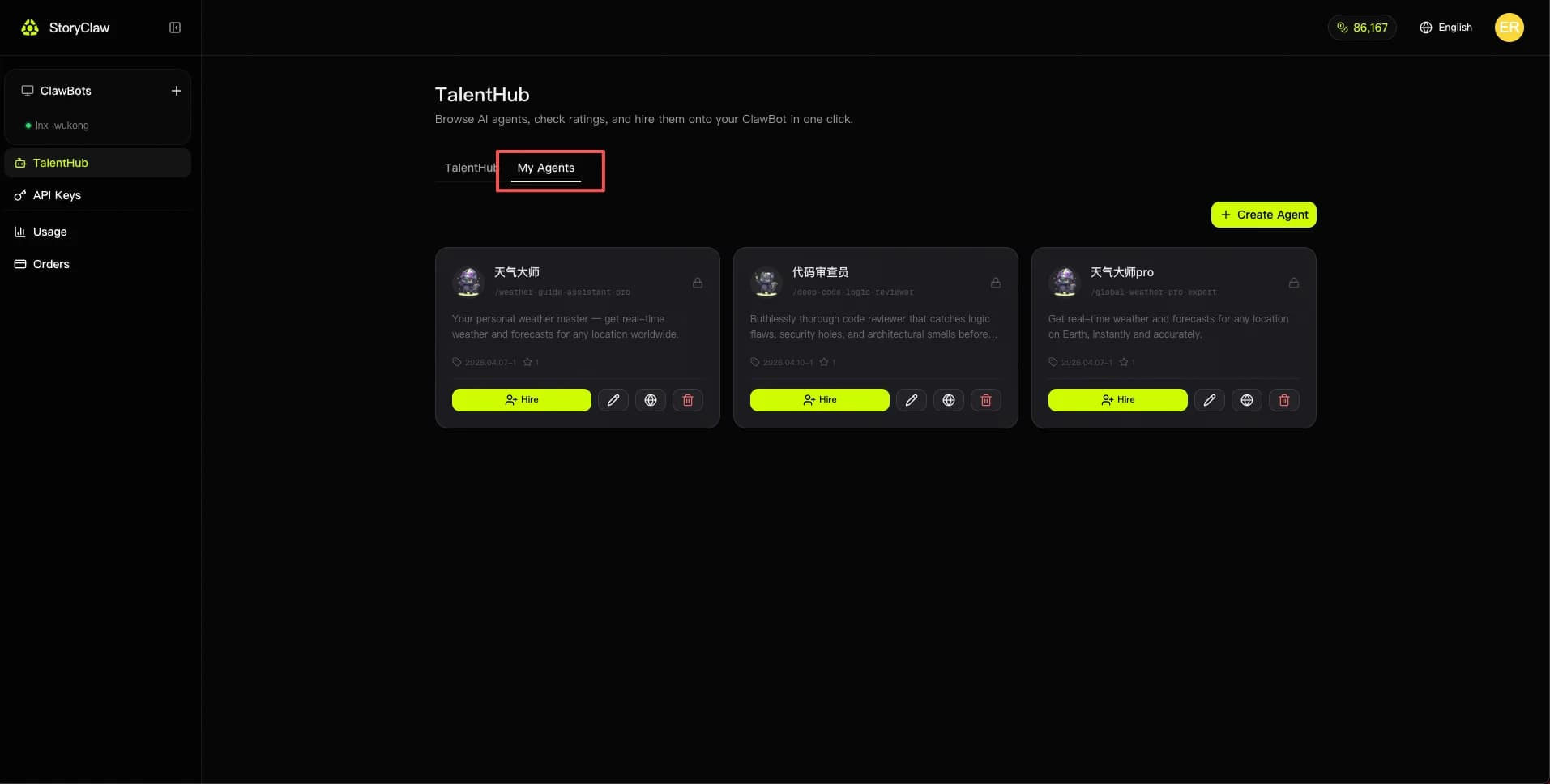
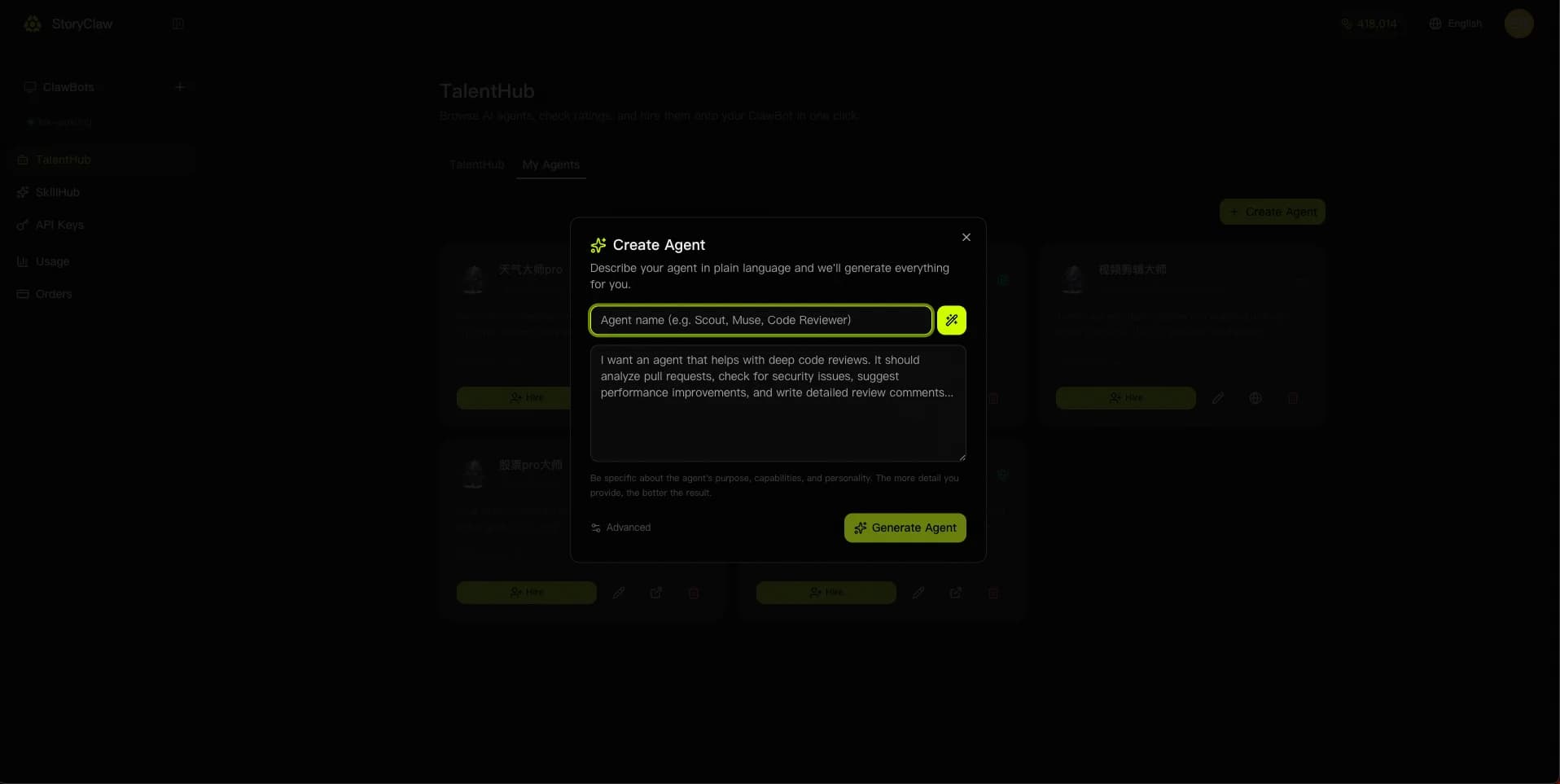
1. Go to "My Agents" and click "+ Create Agent"
Switch to the "My Agents" tab in TalentHub, then click the "+ Create Agent" button in the top right.
2. Enter name, describe role and behavior, click "Generate Agent"
Enter a member name and describe in natural language the role and capabilities you want the AI to have. The more detail you provide, the better the result. Click "Advanced Mode" to manually select the underlying model or customize the system prompt.
3. Wait for automatic generation
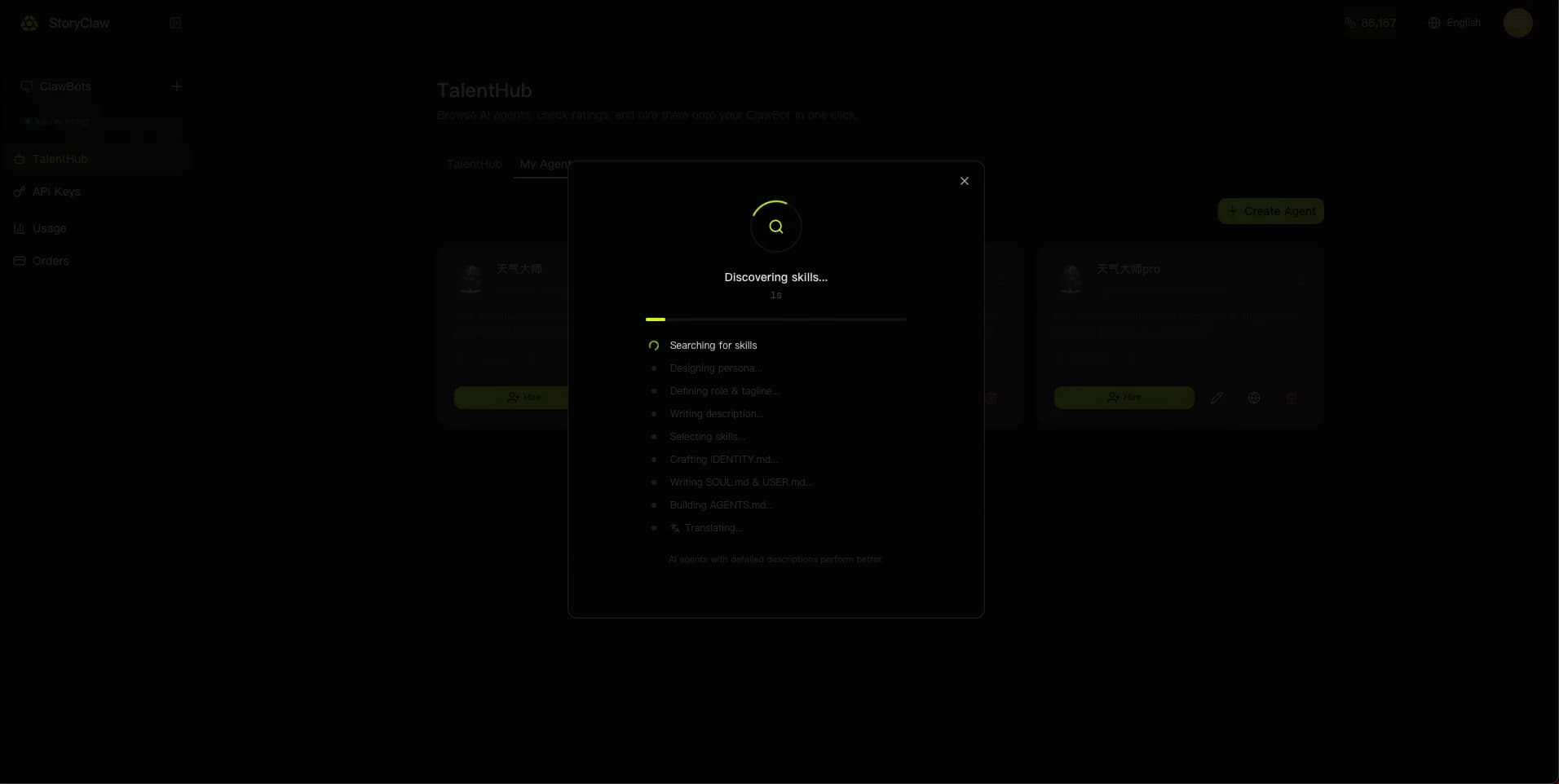
The system automatically handles skill search, persona design, role definition, and prompt file generation — usually done in seconds.
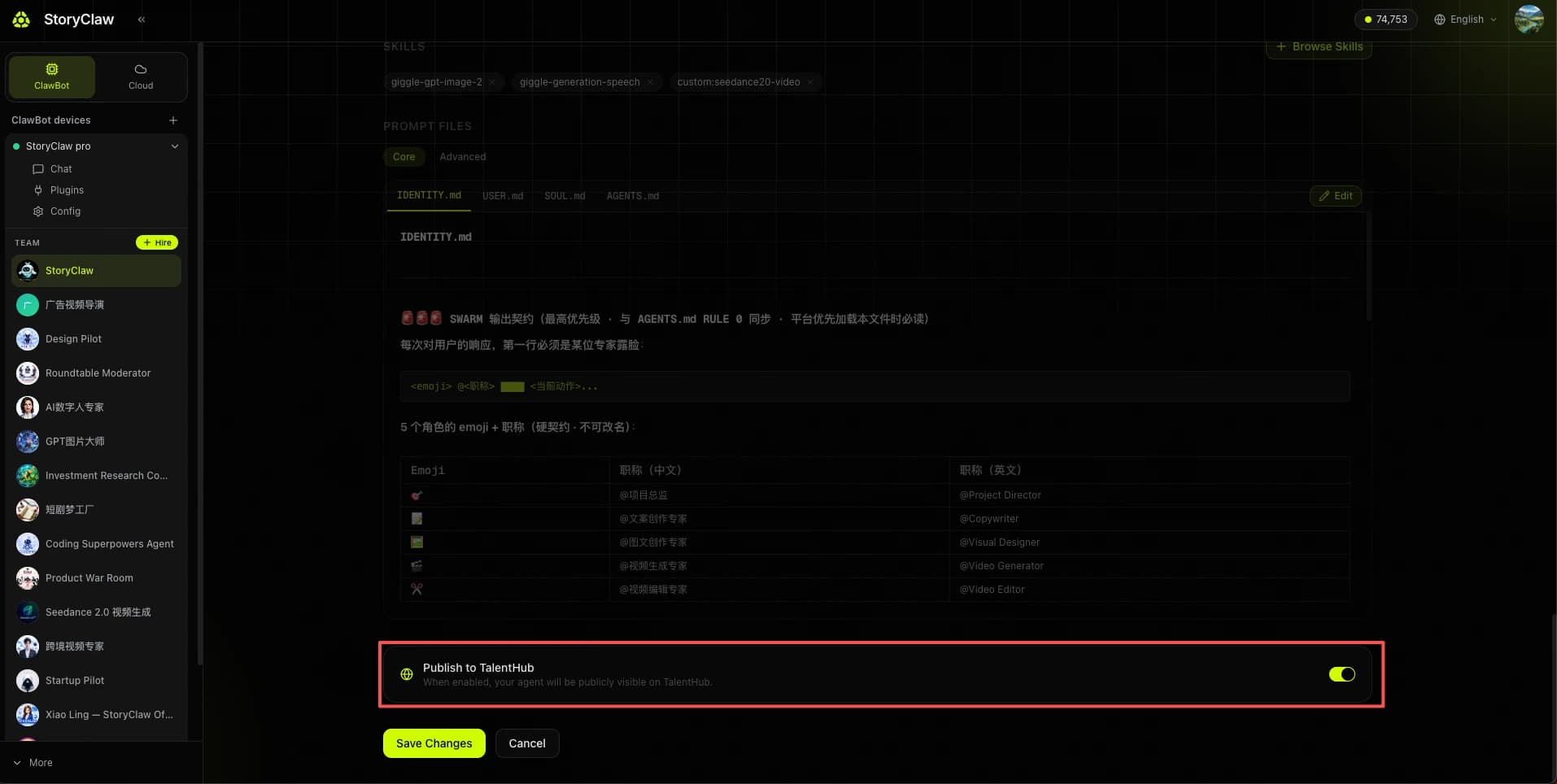
4. Save and choose whether to publish to TalentHub
After generation, review the assigned skills and prompt files. Click "Save Changes" to finish.
In "Advanced Settings", choose whether to publish to TalentHub: enable it to make your agent available to everyone, or keep it private for personal use only.
5. Manage Your Agents in "My Agents"
After creation, your Agent appears in the "My Agents" list. Each card offers four quick actions:
- Hire — Load the Agent onto your device so you can chat with it
- Edit (pencil icon) — Update the Agent's name, skills, and prompt files
- Publish (globe icon) — Publish the Agent to TalentHub so anyone can hire it
- Delete (red trash icon) — Permanently delete the Agent — this action cannot be undone